







Getting Started
Account Transfer Guide
Move your game account from one emulator instance to another using the Transfer Account Data tool in the Admin tab.
On this page

Requirements
- New instances must be created in your emulator Multi-Instance Manager
- Ensure both source and target instances exist.
- Run ESB as Administrator to avoid permission issues.
Steps
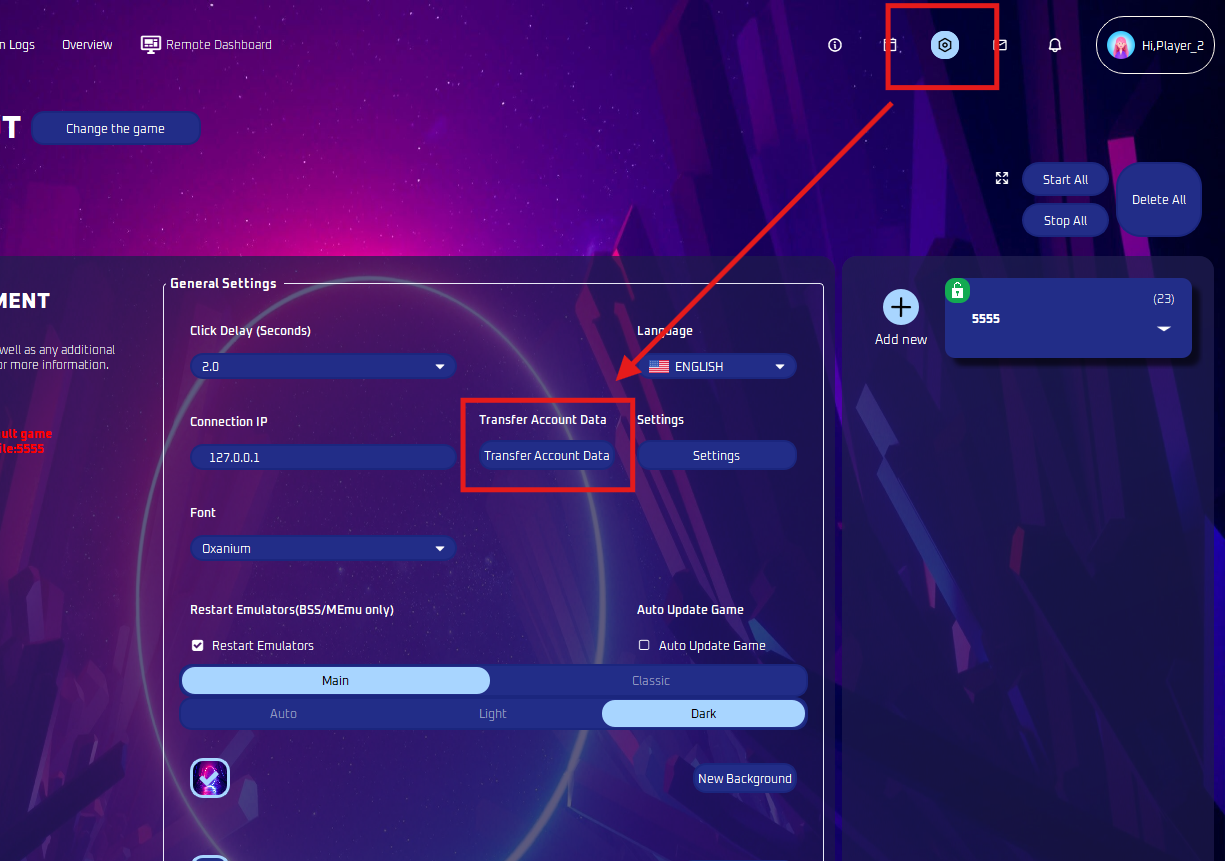
- Open Transfer Account Data
- Click the Admin tab on the left, then select Transfer Account Data.
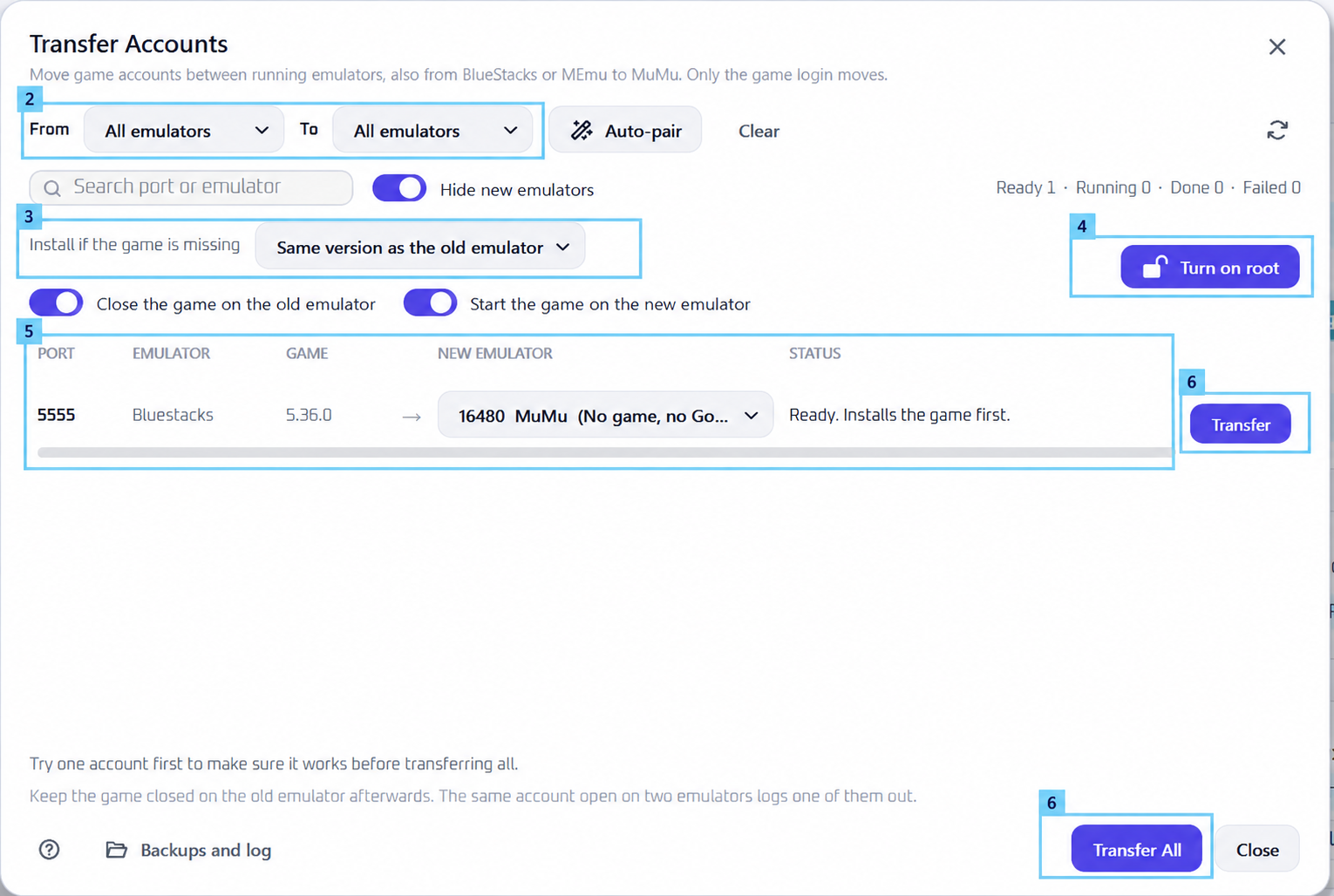
- Click the Admin tab on the left, then select Transfer Account Data.
- Select Emulators
- Use From to filter the source emulator and To to filter the target emulator.
- You can also leave both on All emulators.
- Choose the Game Installation Option
- Under Install if the game is missing, select Same version as the old emulator.
- If the target has no game installed, ESB will install the matching version first.
- Turn On Root — BlueStacks Only
- If prompted, click Turn on root. This allows ESB to access the account data needed for the transfer.
- The button disappears once root is enabled, so skip this step if already rooted.
- Pair the Source and Target
- Find the instance containing your account on the left.
- Under New Emulator, select the instance you want to transfer to.
- Double-check that the source → target pairing is correct.
- Example: BlueStacks (port 5555) → MuMu (port 16480).
- Start the Transfer
- Click Transfer beside the pair, or Transfer All for all configured pairs.
- We recommend testing one account first before transferring all.
- Wait until the status confirms the transfer is complete.
Note
- Create the target instance in your emulator’s Multi-Instance Manager first. Both source and target instances must exist and be running.
- Instances may open or close during the transfer. This is normal.
- Enable Close the game on the old emulator and Start the game on the new emulator if you want ESB to handle these automatically.
- Only the game login moves—not the entire emulator.
- Keep the game closed on the old instance afterward. Opening the same account on both instances will log one out.
- BlueStacks must support root access. If root cannot be enabled, install the game on the new instance and log in manually.
- Previously tested working versions: BlueStacks 5.22.102 and below.