






Emulator Guides
MuMu Player Guide
Set up MuMu Player, our recommended emulator, for ESB: create an Android 12 instance, set the display resolution, switch the renderer to DirectX, find the ADB port and tune performance.
On this page
Important
Use MuMu Player on Android 12 with the DirectX renderer. This is the set-up we recommend for ESB: create the instance on Android 12 (Step 1) and switch the renderer to DirectX (Step 3) before you connect the bot.
Step 1: Set Up MuMu Player
MuMu Player is our recommended emulator because it generally provides smooth and reliable performance across a wide range of systems.
- Download and install MuMu Player: https://www.mumuglobal.com/
- Create a new Android 12 instance. Android 12 is the default option and the version we recommend. Stay on Android 12 even if newer versions are offered.
- Install Evony and sign in to your main or alternate account.
- Confirm that Evony opens and loads successfully.
- Set the game language to English under Evony’s settings.
- Disable automatic updates for Evony to help prevent compatibility issues following future game updates.
Tip
Already have a MuMu instance on a different Android version? Create a fresh Android 12 instance from MuMu Player's multi-instance manager and install Evony there.
Step 2: Set Display Resolution of MuMu
You must set this resolution for compatibility with ESB.
- Open MuMu Device Settings and go to the Display tab.
- Under Resolution, set it to Portrait and pick the Custom option.
- Enter 540 x 960 with 240 DPI.
- Click OK. Restart if asked.
Step 3: Set the Renderer to DirectX
DirectX is the renderer we recommend for ESB. Set it before you connect the bot.
- Open MuMu Settings and go to the Performance tab.
- Under the graphics rendering mode, select DirectX.
- Click Save and Restart.
Important
Keep the renderer on DirectX. Vulkan and OpenGL are not recommended for ESB.
Step 4: Android Debug Bridge (ADB) – Finding Port Numbers
The bot requires the correct ADB port number to connect to your MuMu instance.
Port numbers are usually above 16,000.
If you run multiple MuMu instances, each instance will have a different port.
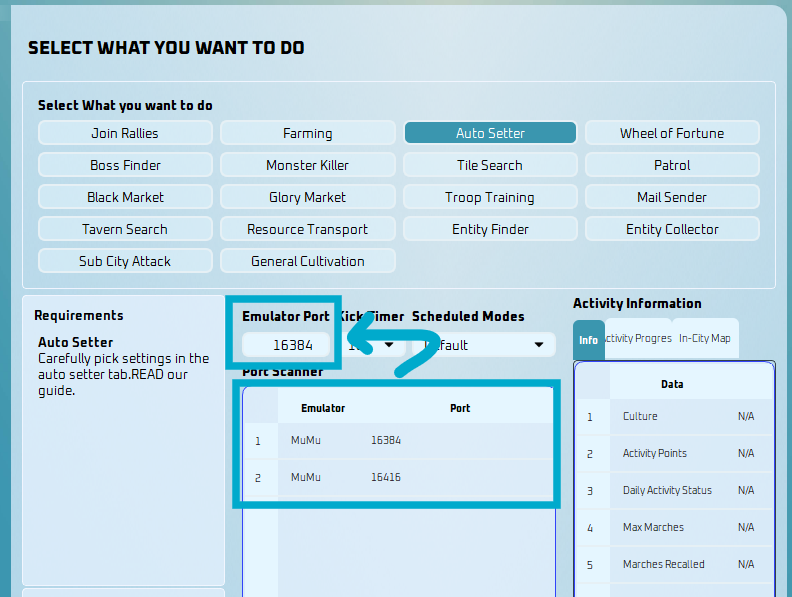
Method 1 — Check Inside the Bot (Fastest Way)
- Open the Bot.
- Go to the Start tab.
- Look at the Emulator Port field.
- Check the Port Scanner section (bottom-right area).
The Port Scanner will show:
- Running MuMu instances
- Their assigned port numbers
Enter the correct port into the Emulator Port field.
Method 2 — Check Directly in MuMu Player
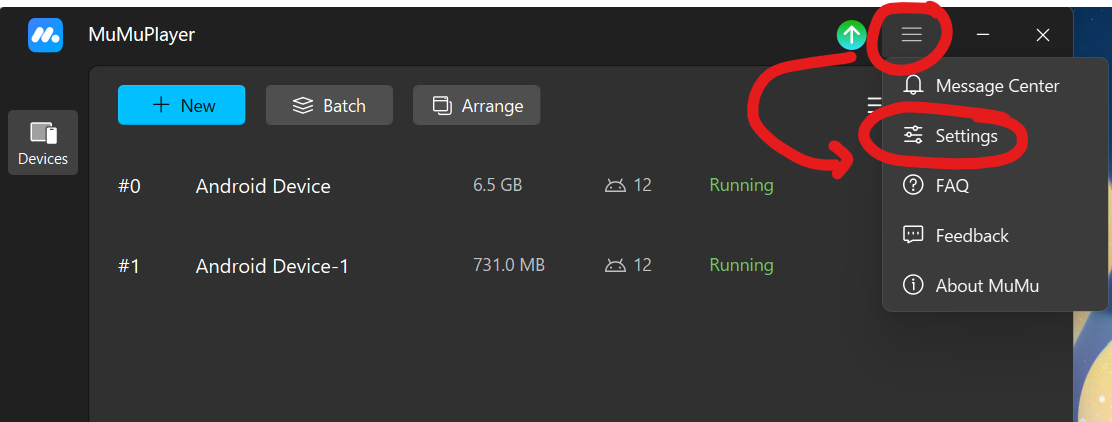
- Open MuMu Player.
- Click the menu icon (top-right corner).
- Click Settings.
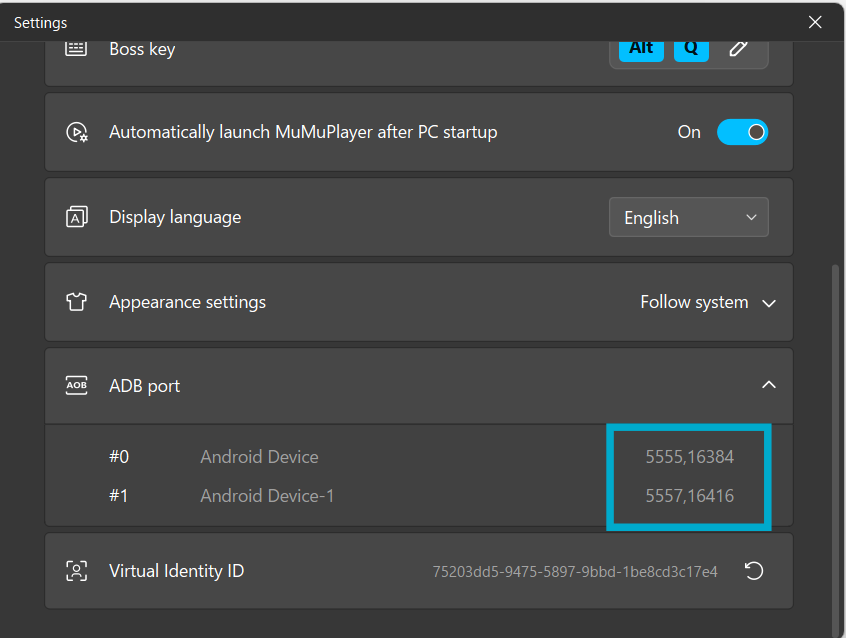
- Scroll down to the ADB port section. The second number (for example: 16384 or 16416) is the port you need to use in the bot.
Step 5: Setting up Performance on MuMu
Emulators use your PC’s resources like a virtual Android device. Setting them properly avoids lag and crashes.
- Go to MuMu Settings → Engine Tab
- Click Customize
- Set CPU: 1
- Set RAM: 2 GB
- Save and Restart if asked.
Step 6: Continue Setting Up ESB
MuMu Player is ready. Go back to How to Prepare to Install ESB New UI to install the bot and sign up, then work through the Onboarding Checklist.
✅ That’s it! MuMuPlayer should now run Evony smoothly with the correct settings!