







Automation Modes
Auto Setter Guide
Auto Setter rallies the bosses found by Boss Finder using presets you configure for bosses, troop type, tiers, amounts and generals.
On this page

Auto Setter is an amazing mode that will auto set bosses for you. This MUST work with the boss finder! You can run farming mode + boss finder together as well!
For a thorough explanation, we encourage you to watch the provided instructional videos here:
Boss finder
Setting-up Auto Setter
OVERVIEW
- Select Auto Setter mode.
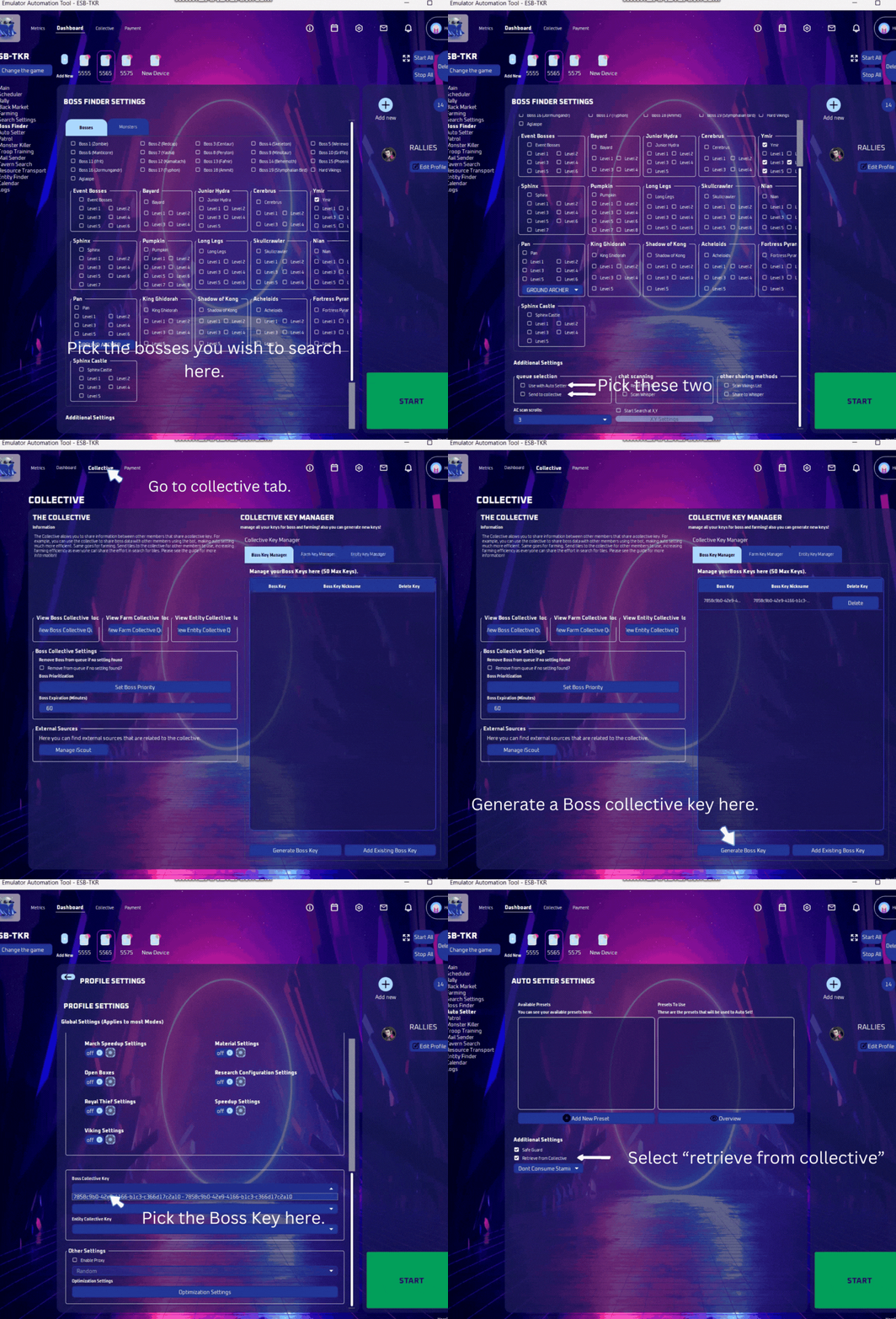
- You also need to have Boss Finders that either send to the collective or not.
- Without a collective, bosses go straight to the local queue.
- Just pick use with autosetter in boss finder settings.
- With the collective, bosses are pulled from the collective into the local queue.
- You need to generate a boss collective key.
- Pick this key on the profile tab.
- Click send to collective in boss finder and retrieve from collective in auto setter settings.
- You WILL need to make a preset and move the presets over from “available” to the “presets to use” on the right.
How it Works
The Auto Setter will smartly pick your presets to determine which is the best one for the boss chosen. It will then go and pick out the troops you decided, and set a 5 minute rally.
- Each Preset Setting contains bosses you wish to set.
- The bot will smartly pick the preset according to the boss. Bosses are Prioritized in the queue.
- Troops are Decided By You: The setting Total Troop Amount is for you to decide what your account can do, to kill the bosses you selected. Please know your own strength!
- Make use of the Collective. This way you’ll see what bosses you’ve found and be set next.
Warning
Things to remember before starting!
☑️ You MUST be zoomed out of the map in the game.
☑️ You can run autosetter on any culture.
☑️ You must have Boss Finder Mode running.
☑️ Make sure your resolution is set to 540x960 (240 DPI) and renderer DirectX
☑️ If you are running from collective, make sure you have picked a key on profile tab, and retrieve from collective is checked on Autosetter Settings.
Setting up your Auto Setter
Use the Collective
- Generate a collective key.
- Pick the bosses you want to find. You need boss finder/s for the auto setter to work!
- You have the option to get boss coords from the collective or just from your local queue.
- Any user who shares the same collective key can then pull those bosses using the autosetter.
Auto Setter Preset Settings
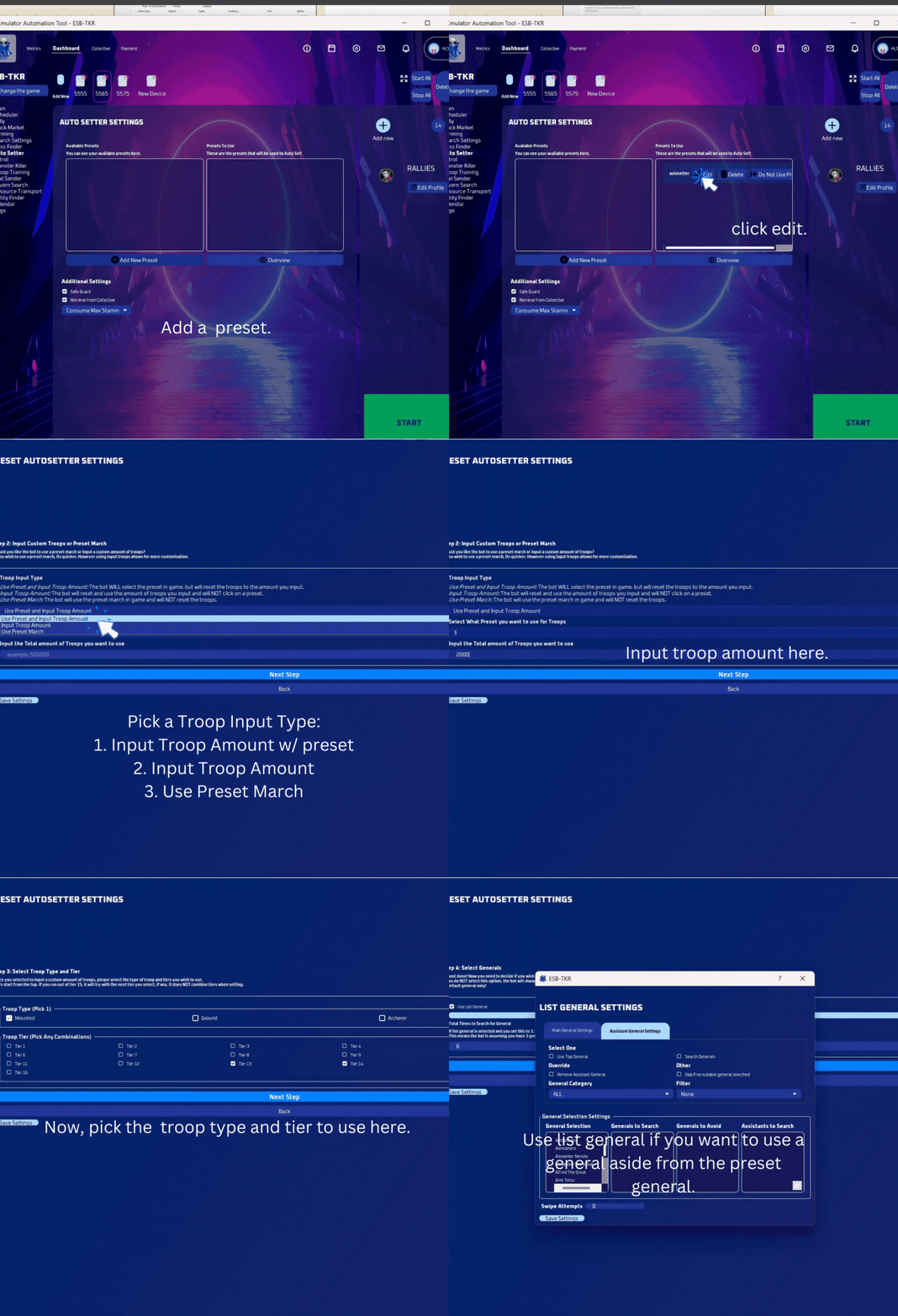
- Make a preset and click “use preset”. Then click edit.
- Select the bosses you wish to defeat.
- Select the Troop Input Type.
- Pick the Troop Type.
- Pick Troop Tiers.
- Use List General:
- You can also pick the generals you wish to use here aside from the preset general in game.
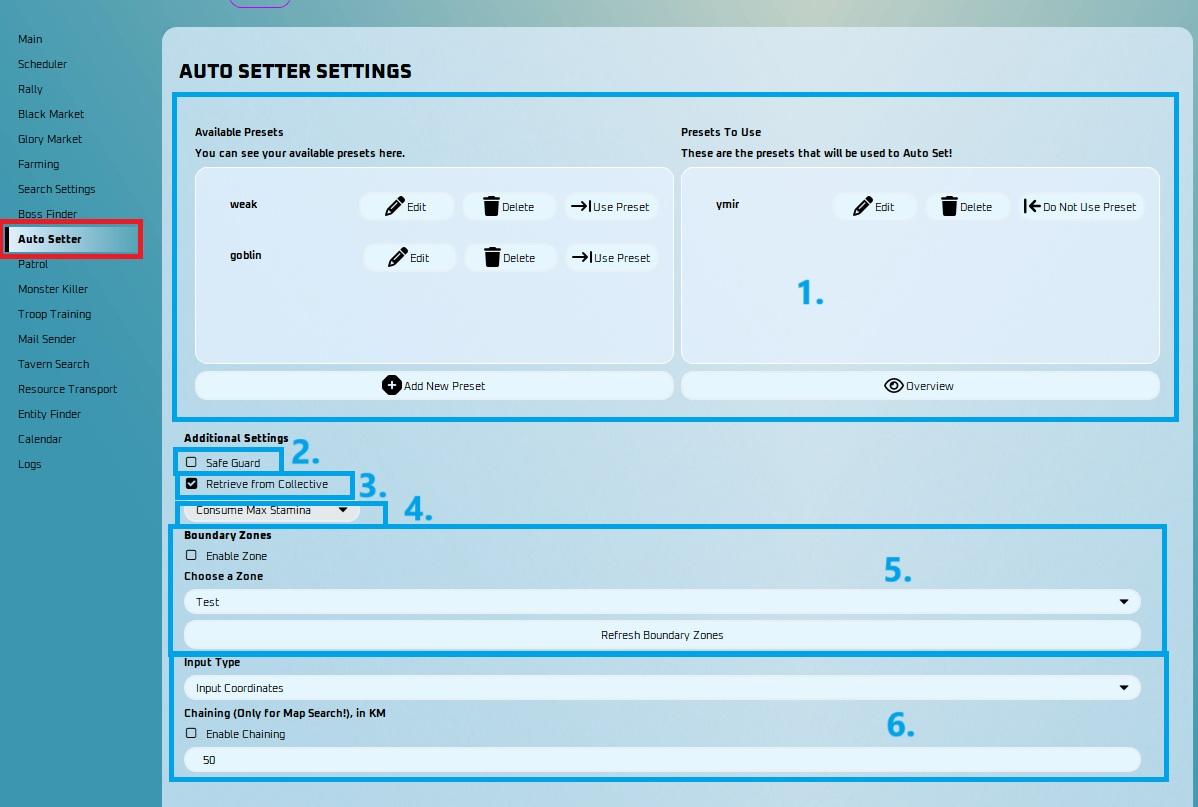
- Set up your Presets: Here is where you set your presets. You WILL need to move the presets over from the "available" to the "presets to use" on the right
- Safe Guard: Not yet implemented - does nothing at the moment.
- Retrieve from Collective:
- Retrieve any bosses shared from yourself or alliance mates via boss finder. It will retrieve bosses from the collective to set!
- Consume Stamina: Consumes stamina if you run out.
- Don’t Consume Stamina
- This will not open any stamina boxes if you run out.
- Consume Stamina:
- Select this to consume stamina. It will max out your stamina up to 9,999.
- Use only 1 Stam:
- When you run out of stamina, it will only consume one x100 or one x50.
- Don’t Consume Stamina
- Boundary Zones
- You can now create zones so that you do not set bosses, tiles, or collect entities from certain locations. You can make this boundary zones in the collective tab, more info here.
- Chain Set
- The Auto Setter now includes a new feature to map search and set chain bosses directly, removing the need to input coordinates!
- Input Coordinate - this will continue to type the retrieved coordinates from the collective as before.
- Map Search - this method doesn't involve inputting coordinates but relies on the map for the search.
- Chain Set boss: This means that if in your current position you are near the next boss, it will go to that boss by swiping. Should be on Map Search.
- The Auto Setter now includes a new feature to map search and set chain bosses directly, removing the need to input coordinates!
Note
Due to the complexity of the changes, it is only available in 540x960 resolution until we sort out any possible issues reported.
Preset Settings
Step 1: Selecting Bosses and Monsters
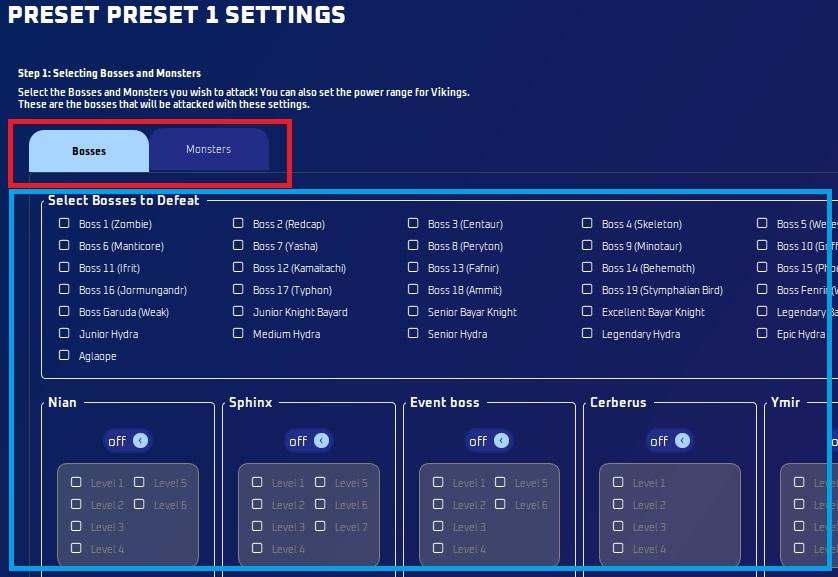
- Select the bosses or monsters you wish to defeat
- Power Start and Power End is power in millions for Vikings

The Solo Bosses option lets the bot attack soloable bosses by itself instead of starting a rally.
- Turn on Solo Bosses to enable it.
- Click View to see the list of Soloable Bosses.
- If a boss is on the Soloable Bosses list, the bot will attack it solo.
- If a boss is not on the list, the bot will rally it normally using the 5-minute rally timer.
Note
Your boss selections still apply. This setting only changes whether a boss is attacked solo or by rally.
Step 2: Input Custom Troop/ Preset March
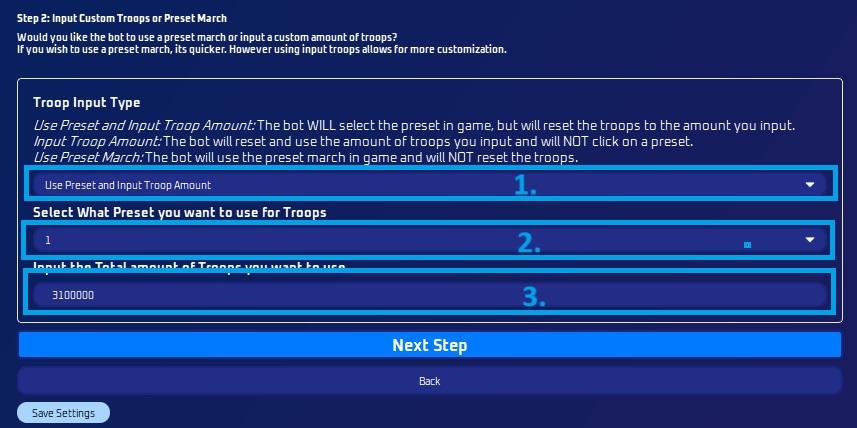
Troop Input Type:
- Use Preset and Input Troop Amount: The bot WILL select the preset in game, but will reset the troops to the amount you input.
- Input Troop Amount: The bot will reset and use the amount of troops you input and will NOT click on a preset.
- Use Preset March: The bot will use the preset march in game and will NOT reset the troops.
Preset to be used:
- If you picked to use a preset, pick the preset that you will use in the game.
Input the Total Troop Amount:
- The bot will go and pick the Troop Type, and look for the Troop Tiers you selected. It will then attempt to enter in the total amount of troops for that tier.
- This doesn’t mean if you have t13 and t12 selected, it will enter 400,000 for both. It will enter 400,000 for the first one it sees. If the first one doesn’t have any left due to them being set, it will move onto the next tier.
Step 3: Select the Troop Type and Tier
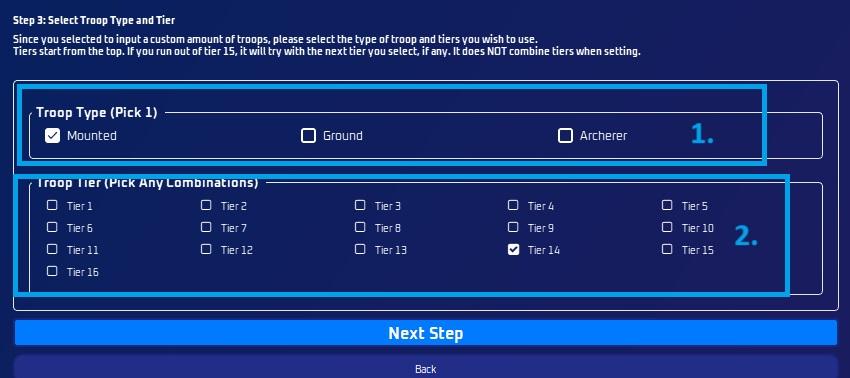
Pick the Troop Type
- You can only use one. You can pick Mounted, Ground, or Archer.
Pick Troop Tiers
- You can select some troop tiers you wish to use to defeat some bosses
Step 4: Select Generals
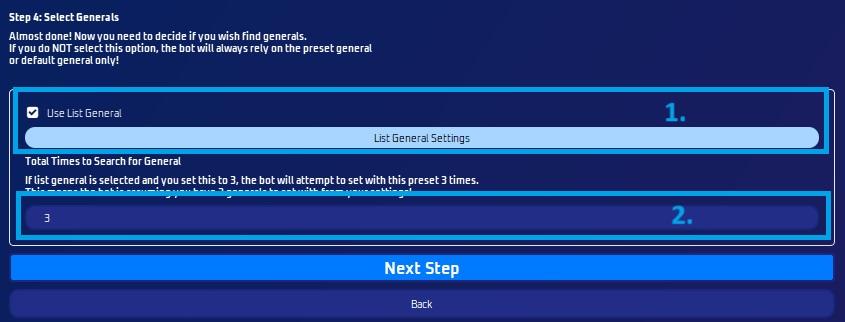
Use List General: This picks either the top general in the list for the preset if there's no general available, or find the general you want to use.
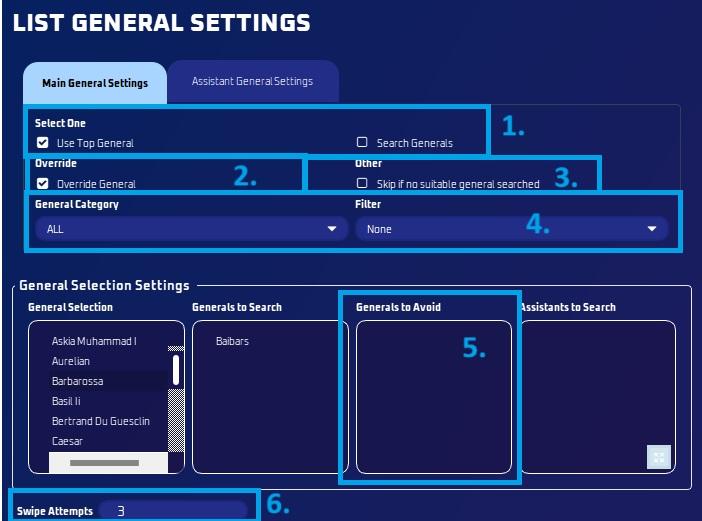
- List General Settings
- You can now select a list of generals you would like to search for when the general is not available in your preset.
- Override
- This has the ability to override the general in your preset or default march so that you can search for other generals.
- Skip if no suitable general searched
- This will skip the boss if there are no suitable generals available based on your settings
- General Category
- You can now filter by category (ALL, Development, Military, etc)
- You can now also filter by favorite or idle.
- Generals to Avoid
- You can now choose to avoid certain generals. This is used when selecting "Use top general". This won't matter for search generals due to the nature of it only searching for a specific general, thus naturally avoiding everything else.
- Swipe Attempts
- This is how many times it will swipe down to try and find the general you have listed.
- Take note, if you got a ton of generals, you need to increase the swipe amount, then again that will take even longer to join a rally
- List General Settings
Total Time Search for General
- If 'List General' is selected and you set this to 3, the bot will attempt to set it three times. This implies that the bot assumes you have three generals to choose from in your settings.
Now you’re all done! Save settings and you’re ready to go! 😀
Set up your Presets
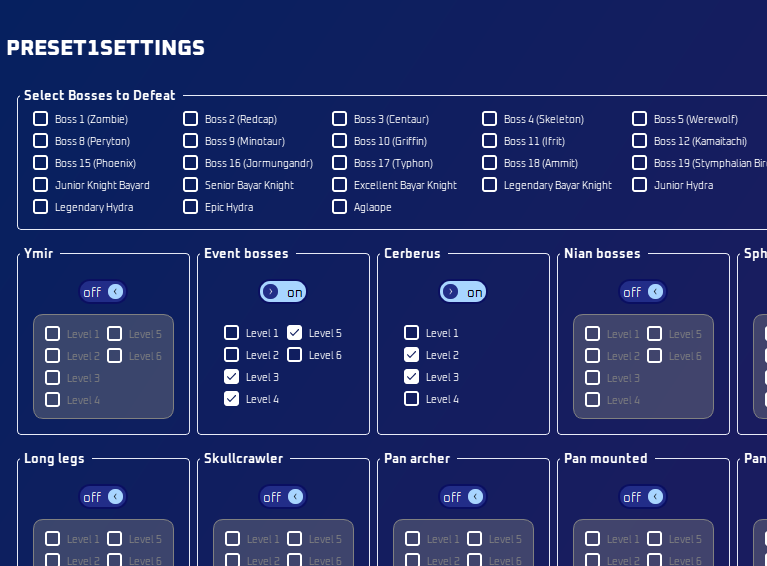
Here is where you set your presets. This isn’t like the other modes. This does NOT go off your troops in the preset. It is used to select different troop types and different generals for specific bosses.
- The bot will smartly pick which preset to use! So do not worry. If there is an Event Boss level 2, it will select the “weakest” preset and not waste your strong preset to defeat it.
- Having a “weak” preset with “Use list general” is highly recommended, so that you may not run out of presets to defeat bosses, as these low level bosses are common.
The Strong Preset
This is a preset you want a specific general to handle certain bosses. For example, you only want your strongest cav general to kill a B15. So in your preset itself, your general for that preset is your cav general. You also do NOT have Use List General checked. This way, the bot will skip this preset and either go to the next best preset, or put the boss back in the queue if that general is currently away.
The Middle Preset
Maybe you want a specific general, or random generals, to handle middle-tier bosses, but with t14 troops only. You know with your t14s, you can kill these mid-level bosses with random generals with no wounded.
The Weak Preset
I highly recommend this. This is the preset you feel comfortable killing weaker bosses with random generals with the Use List General option selected. Additionally, use lower tiers such as t13/t12/t11 for these bosses.
Warning
It is very important you read and understand how to Auto Setter. It is up to YOU to make sure you set the proper settings such that you do not get any wounded on the bosses you select. There's plenty of checks in place to select the correct preset and troop amount, so don’t worry. Just make sure you correctly set this up.
I hope this guide is helpful for you. Please experiment with setting up your own Preset Settings and do what works best for you. Report to me any bugs you may find. Enjoy!