







The Collective
External Resource
Link iScout to the Collective with your iScout API key so the bosses iScout finds appear in your collective queue.
Это руководство ещё не переведено на Русский, поэтому оно показано на английском.
На этой странице

iScout
We have now integrated with iScout! iScout is an external resource to send data to our collective. We are not associated with their business other than to receive data from them. Please contact them for support: https://www.iscout.club
How to Link iScout
- Navigate to the collective page, then locate and click on “Manage iScout.”
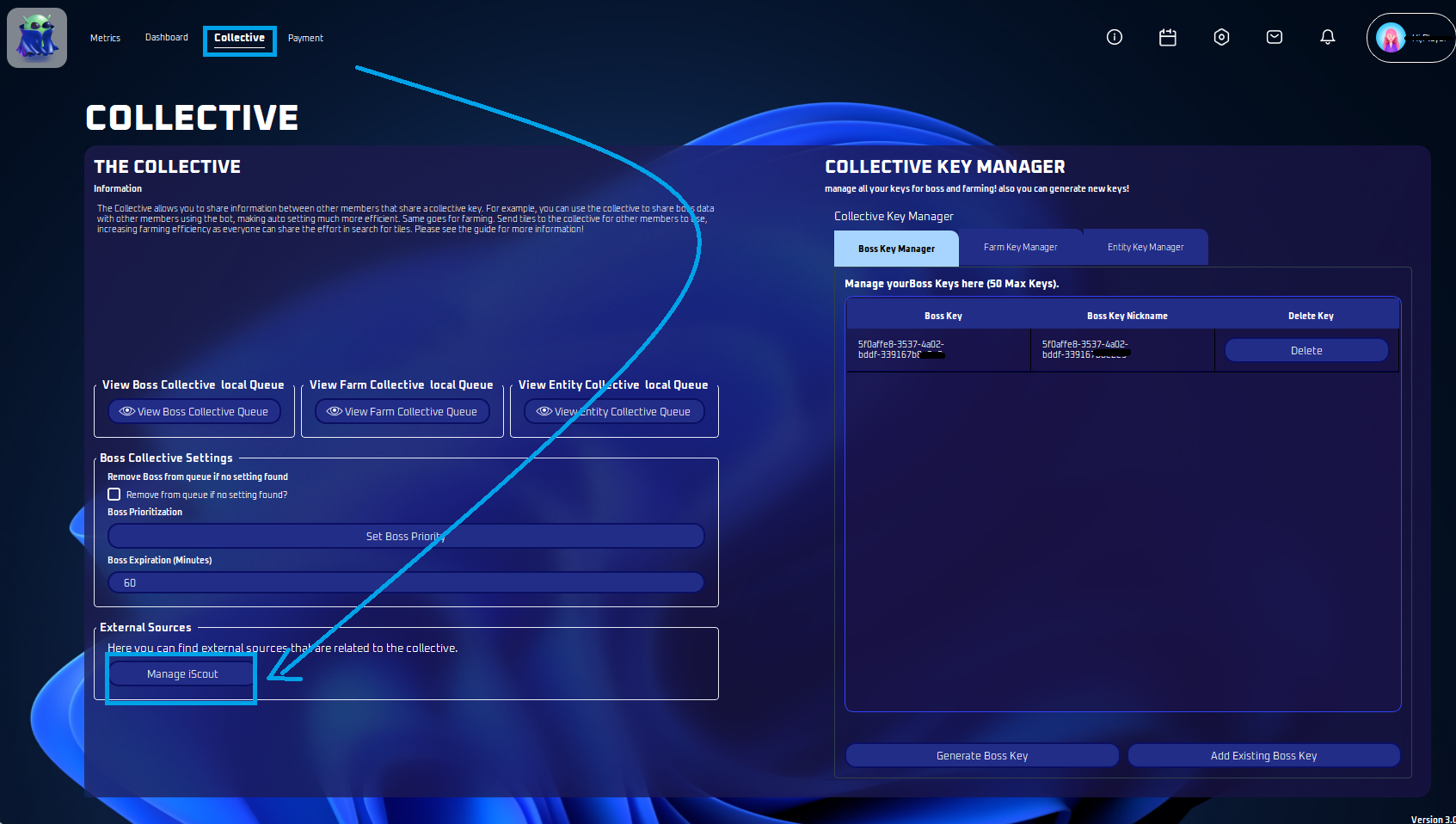
- Set up your iScout API key by following these steps:
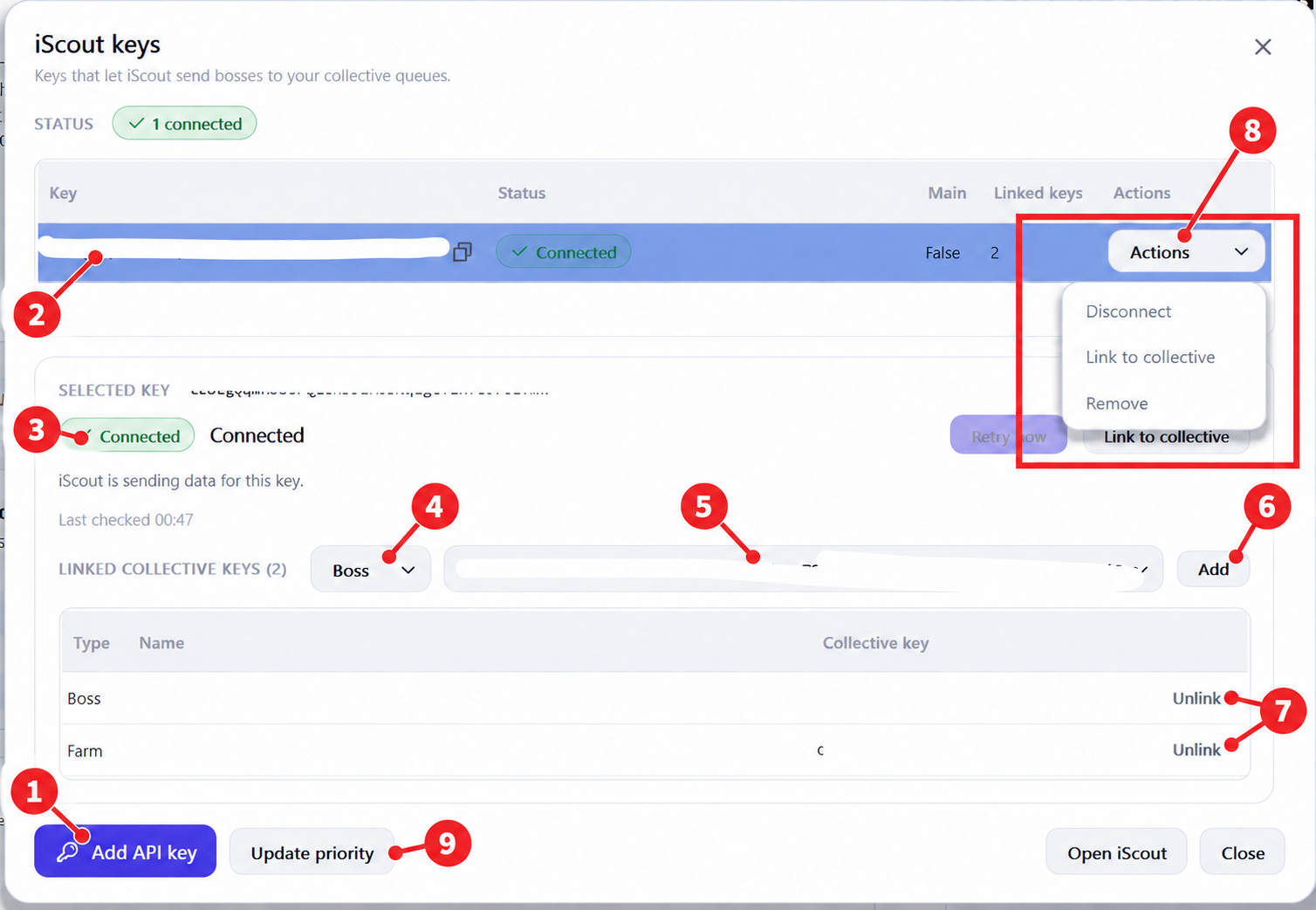
- Click “Add API key” and enter the API key provided by iScout. An active iScout monthly API subscription is required.
- Select your API key to view its connection details and linked collective keys.
- Check the status. “Connected” indicates that iScout is sending data for this key.
- Select the preferred Key Type: Boss, Farm, or Entity.
- Select the Collective Key you want iScout to send data to. If no collective key is visible, verify that you’ve generated one using the Boss Key Manager. See the Collective Guide for Bosses · New Interface · EAT Docs for more information.
- Click “Add” to associate the selected collective key with your API key. Repeat steps 4–6 to add more keys.
- Click “Unlink” beside a collective key to stop sending iScout data to that key.
- Click “Actions” to manage your API key:
- Disconnect / Connect: Disconnects or connects the API key to iScout.
- Link to collective: Opens the collective linking options.
- Remove: Removes the API key from the list.
- To update priorities, adjust your boss prioritization list, clear your boss queue, then click “Update priority.”
- Make sure you picked the same collective key used in your Profile tab. Click “Refresh Key List” if newly generated keys are not showing.
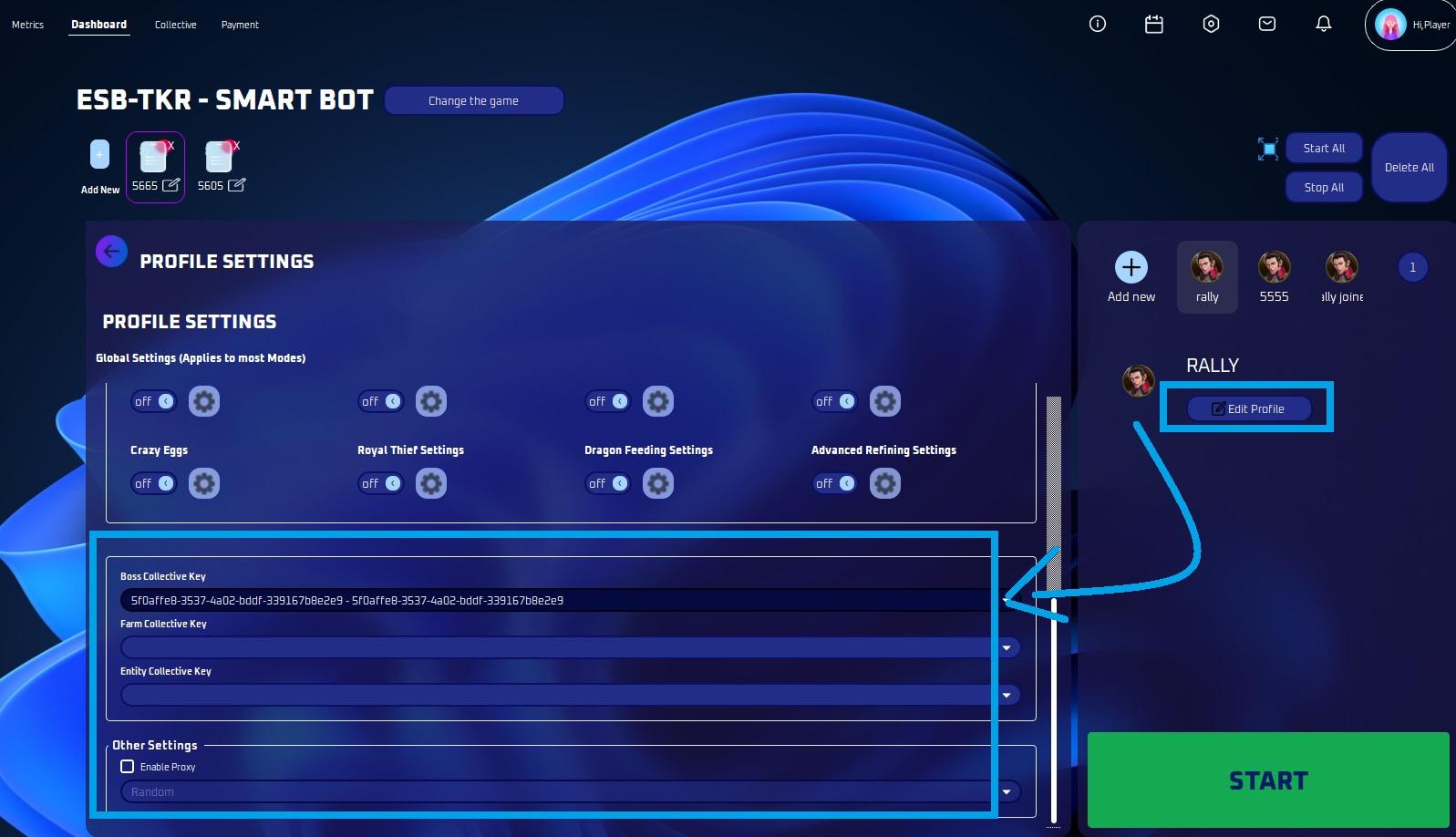 And now you’re done! You have completed the steps. Now, you’ll be able to view all bosses retrieved from iScout in your collective queue!
More information about the collective here:
Note
- The restriction of one API key per bot username has been removed. Now, one API key can be used, and all users using the same collective key can see the bosses from iScout.
- For any inquiries regarding iScout prices, subscription details or functionality, please reach out to iScout directly.