







Automation Modes
Proxy Guide
Route a profile through a Webshare proxy: enable the proxy in the profile settings, add your Webshare API key and pick a proxy mode.
Это руководство ещё не переведено на Русский, поэтому оно показано на английском.
На этой странице

How to Use
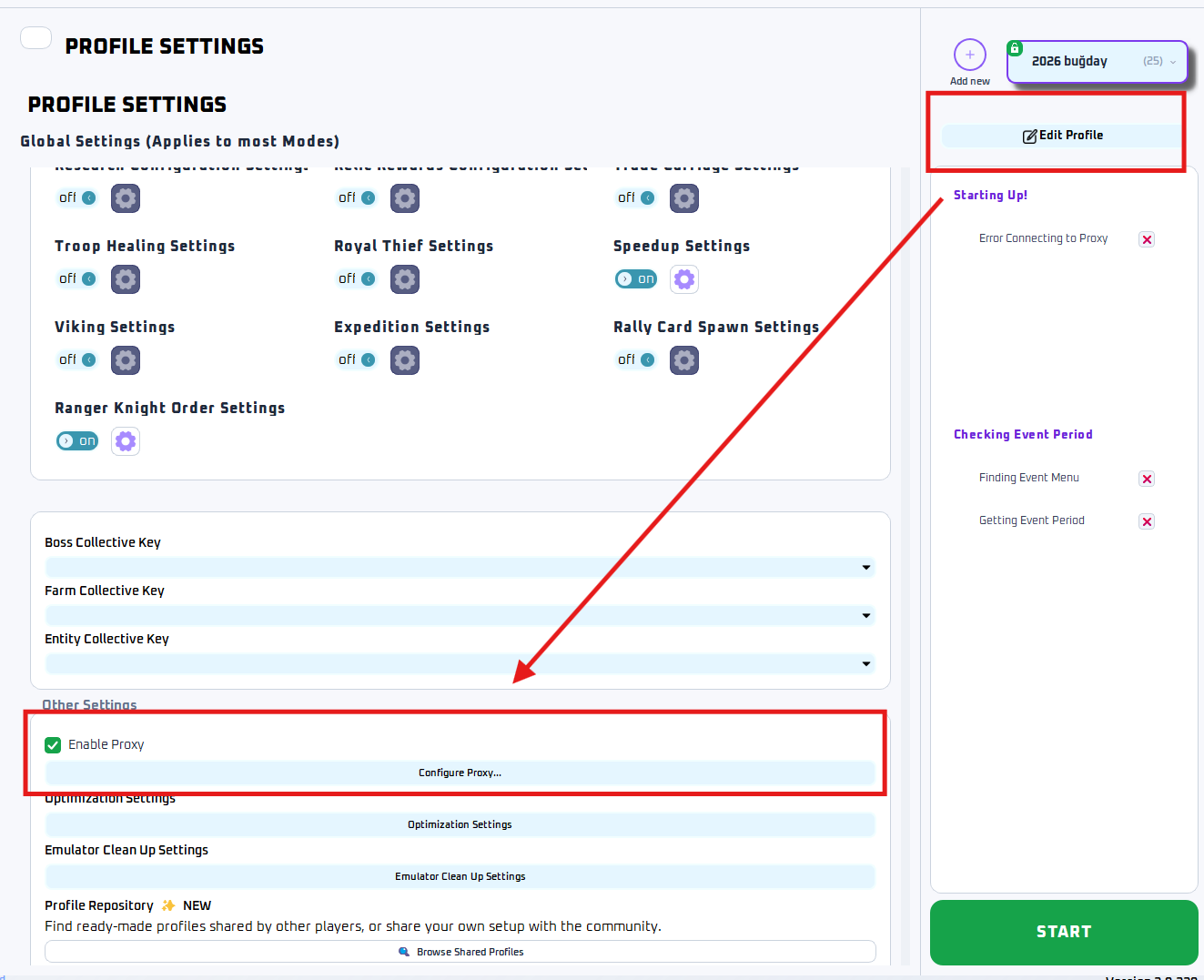
To Open Proxy Settings
- Go to the profile you want to edit.
- Click Edit Profile.
- Scroll down to Other Settings.
- Enable Enable Proxy.
- Click Configure Proxy...
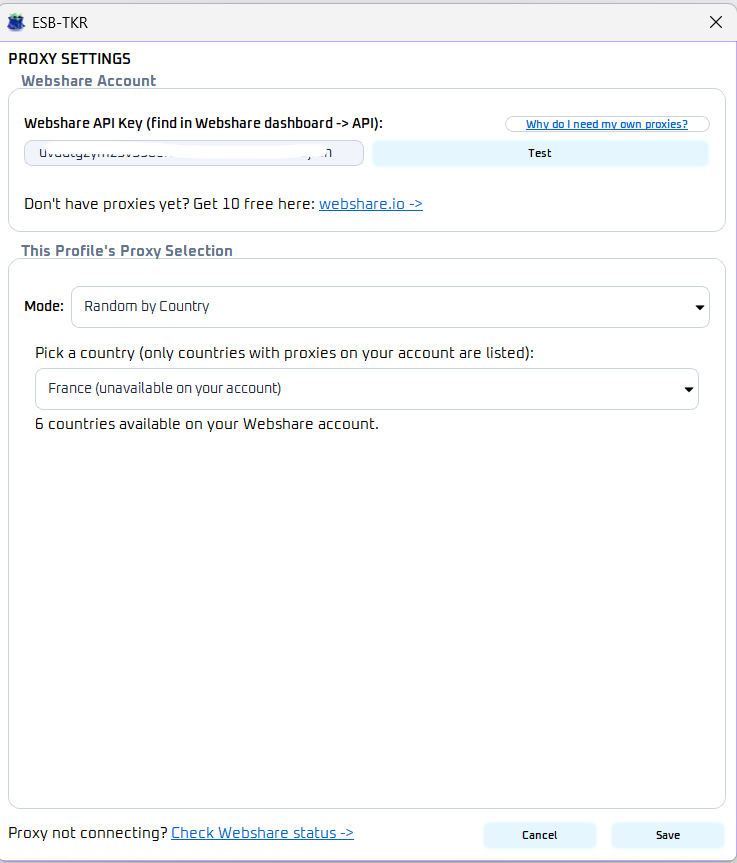
Setting Up Webshare
Step 1: Get Your Webshare API Key and get 10 free proxies.
- Open Webshare Dashboard
- Sign up or Log into your account.
- Find your API Key in the dashboard.
- Copy the API key.
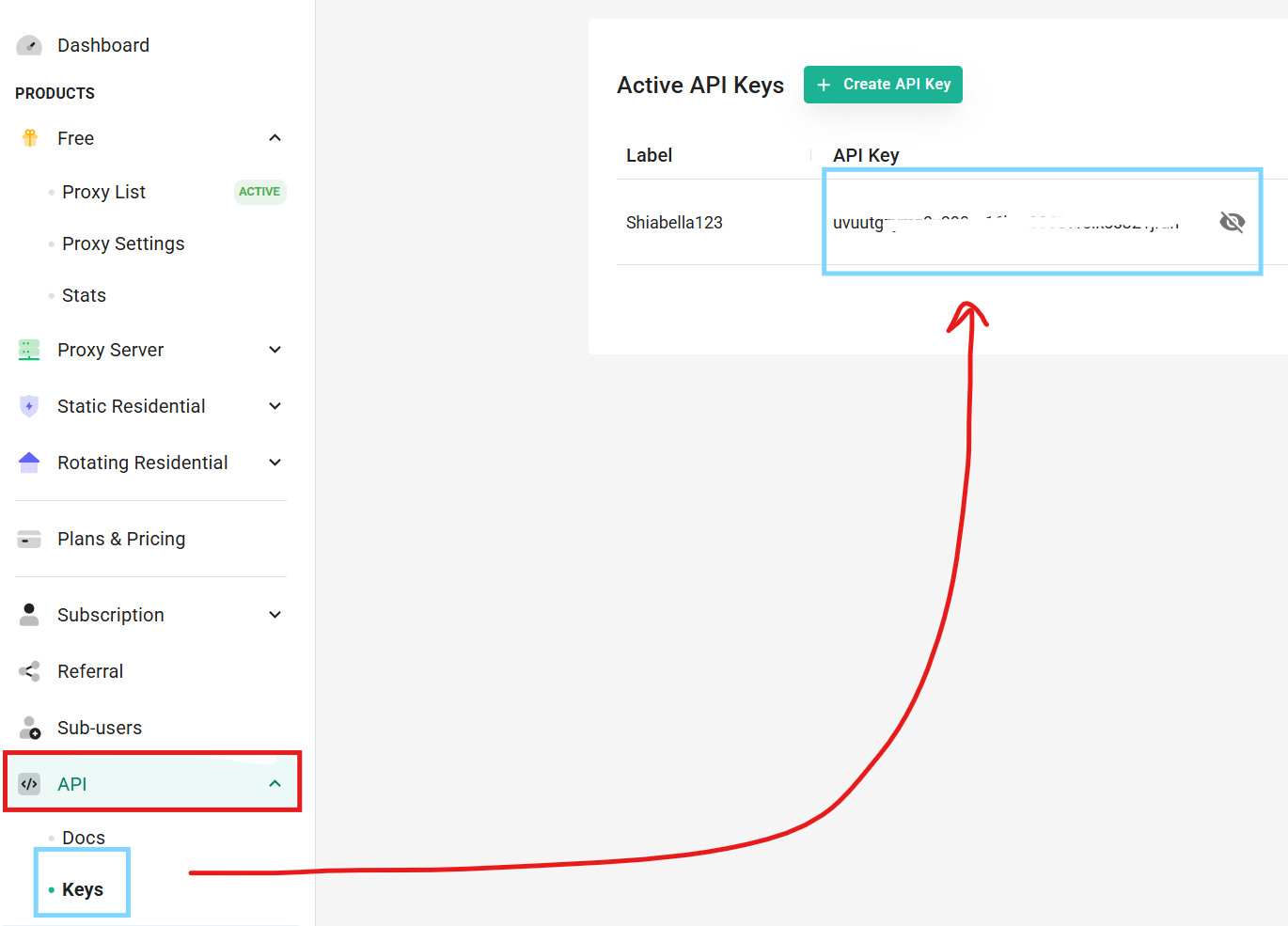
Step 2: Add API Key
Paste the API key into: Webshare API Key

Click Test. If successful, the bot will show ‘connected’ using the email linked to your Webshare account.
Step 3: Proxy Modes
Pick the proxy mode you want depending on how you want proxies assigned to profiles.
Random Any
This mode randomly selects any available proxy from your Webshare account.
Random by Country
This mode randomly selects a proxy only from the selected country.
Specific Proxy
This mode allows you to manually assign a single exact proxy to the profile.
Note
1 Webshare account gives 10 free proxies.
Each proxy can be used for as many instances/profiles as you want, though spreading profiles across multiple proxies is generally recommended for better stability and separation.