







Automation Modes
Calendar Guide
Schedule main jobs and activities in the Calendar, choose a scheduled mode and manage the events planned for today.
Это руководство ещё не переведено на Русский, поэтому оно показано на английском.
На этой странице
How to Use
Follow the steps below to understand and take advantage of this mode.
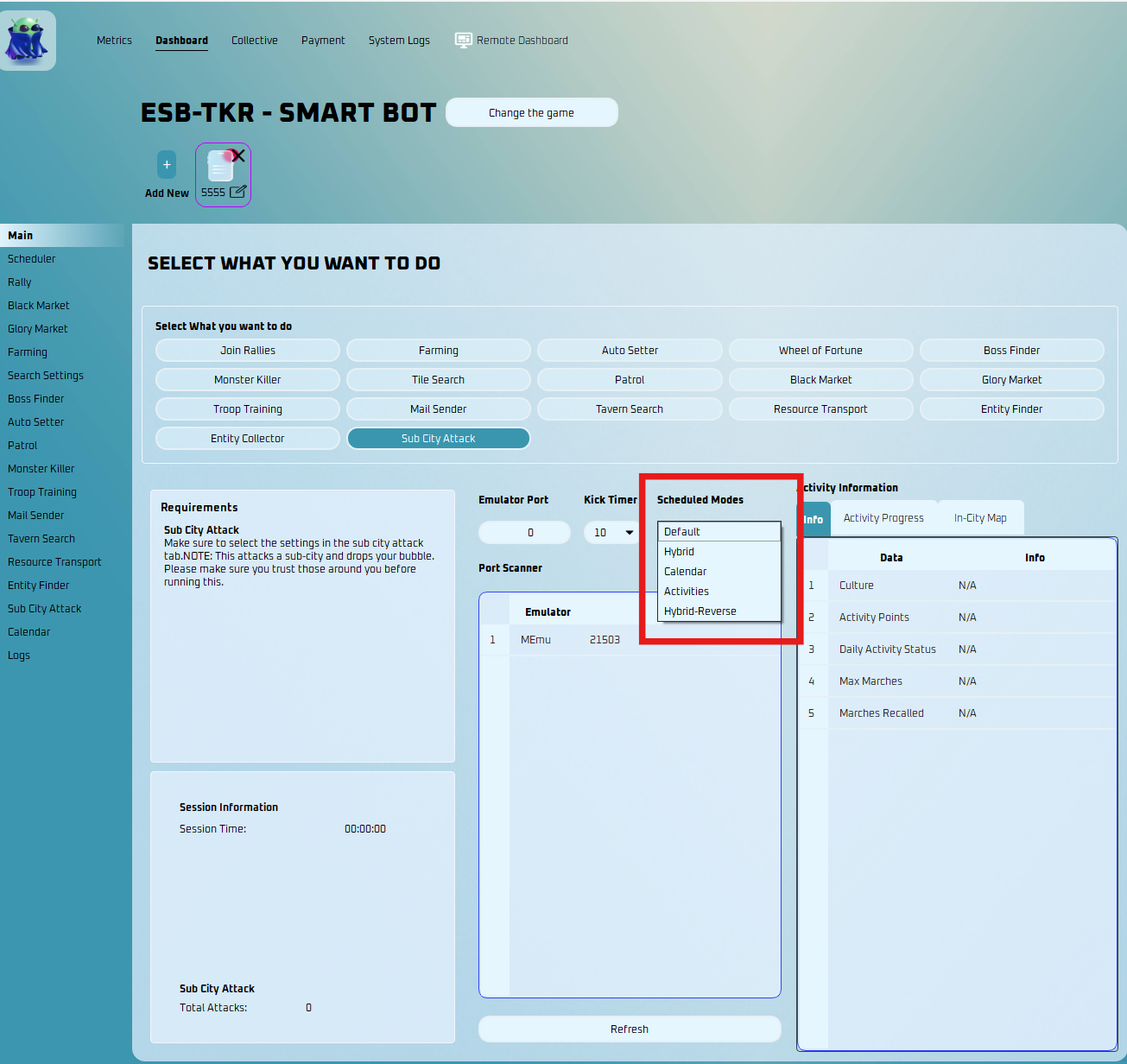
Scheduled Modes
- Default - the original ESB way. Leave it if you don't want to mess with setting up times.
- Hybrid - Runs the main jobs from the Main page, but will run activities from the times in the Calendar.
- Calendar - Runs main jobs and activities from the Calendar.
- Activities - Runs only activities selected on profile tab.
- Hybrid Reverse - Runs only the main tasks in Calendar, but runs the activities as normal.
Calendar Settings
- You must go to the Calendar Settings tab to adjust the settings.
Add New Event
Main Jobs
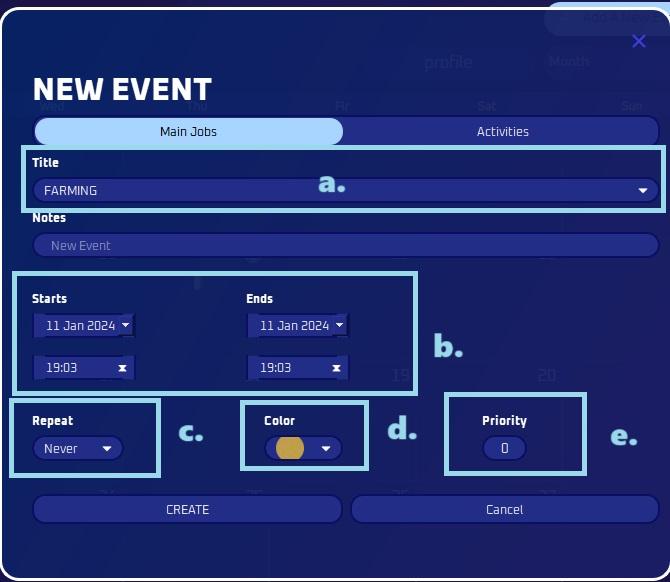
- Title
- Pick the Mode you wish to add.
- Time
- Select the preferred start and end time for doing this mode.
- Repeat
- Opt for this selection if you wish to repeat this action on a daily, weekly, or monthly basis.
- You can also customize it to your preference.
- Color
- Personalize the appearance by selecting a color to easily distinguish an activity and make it easily recognizable.
- Priority
- Choose the priority level here.
- Title
Activities
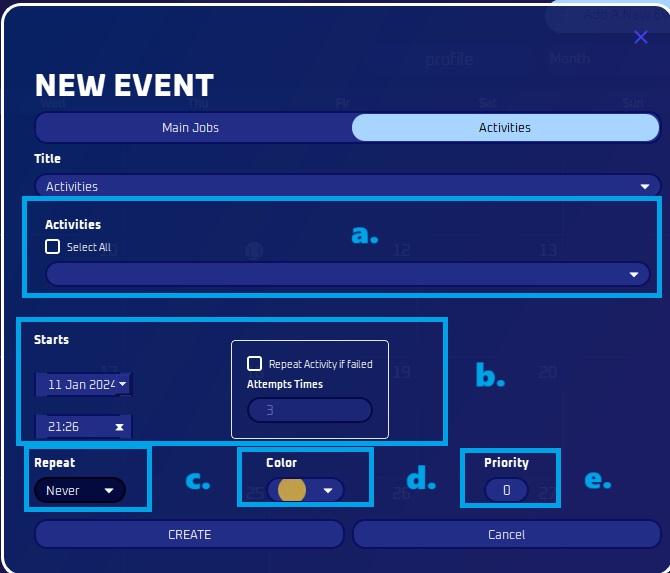
- Activity
- Pick the Activity you wish to add.
- You also have the option to select all.
- Time
- Select the preferred start and end time for doing this mode.
- Repeat activity if failed means the bot will attempt the task again if it runs into an error or doesn't complete successfully.
- Repeat
- Opt for this selection if you wish to repeat this action on a daily, weekly, or monthly basis.
- You can also customize it to your preference.
- Color
- Personalize the appearance by selecting a color to easily distinguish an activity and make it easily recognizable
- Priority
- Choose the priority level here. This is in case for duplicate events that might overlap.
- Activity
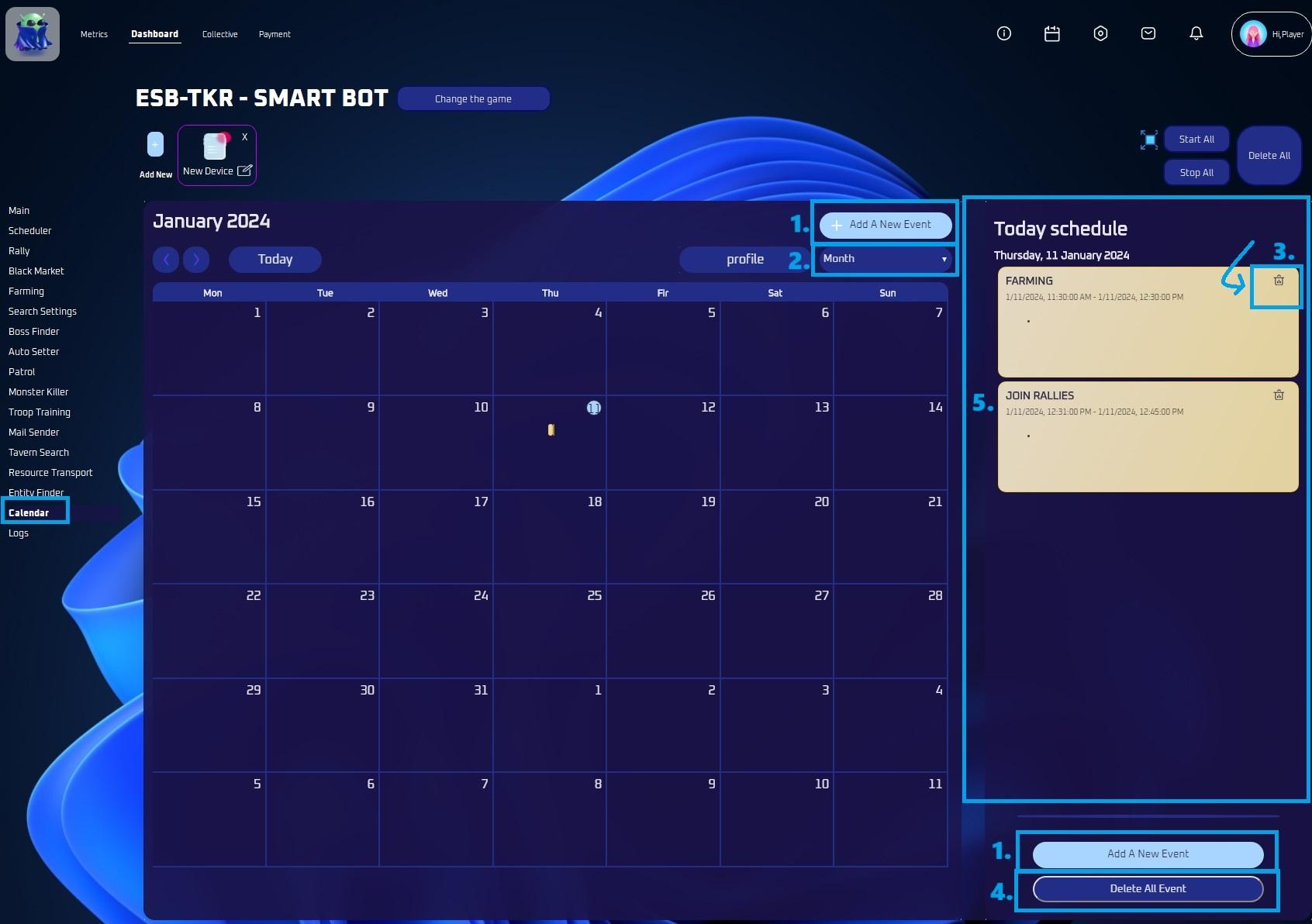
View
- You can customize the view here, choosing between monthly, weekly, or daily options.
Delete an Activity
- You can delete a specific activity here.
Delete All
- Pressing this button allows you to delete all activities for today.
Today’s Schedule
- Here, you can view a list of all activities scheduled today.
Note
Simply click the button in the upper right corner to easily navigate to your calendar.