







Getting Started
Account Transfer Guide
Move your game account from one emulator instance to another using the Transfer Account Data tool in the Admin tab.
Это руководство ещё не переведено на Русский, поэтому оно показано на английском.
На этой странице

Requirements
- New instances must be created in your emulator Multi-Instance Manager
- Ensure both source and target instances exist.
- Run ESB as Administrator to avoid permission issues.
Steps
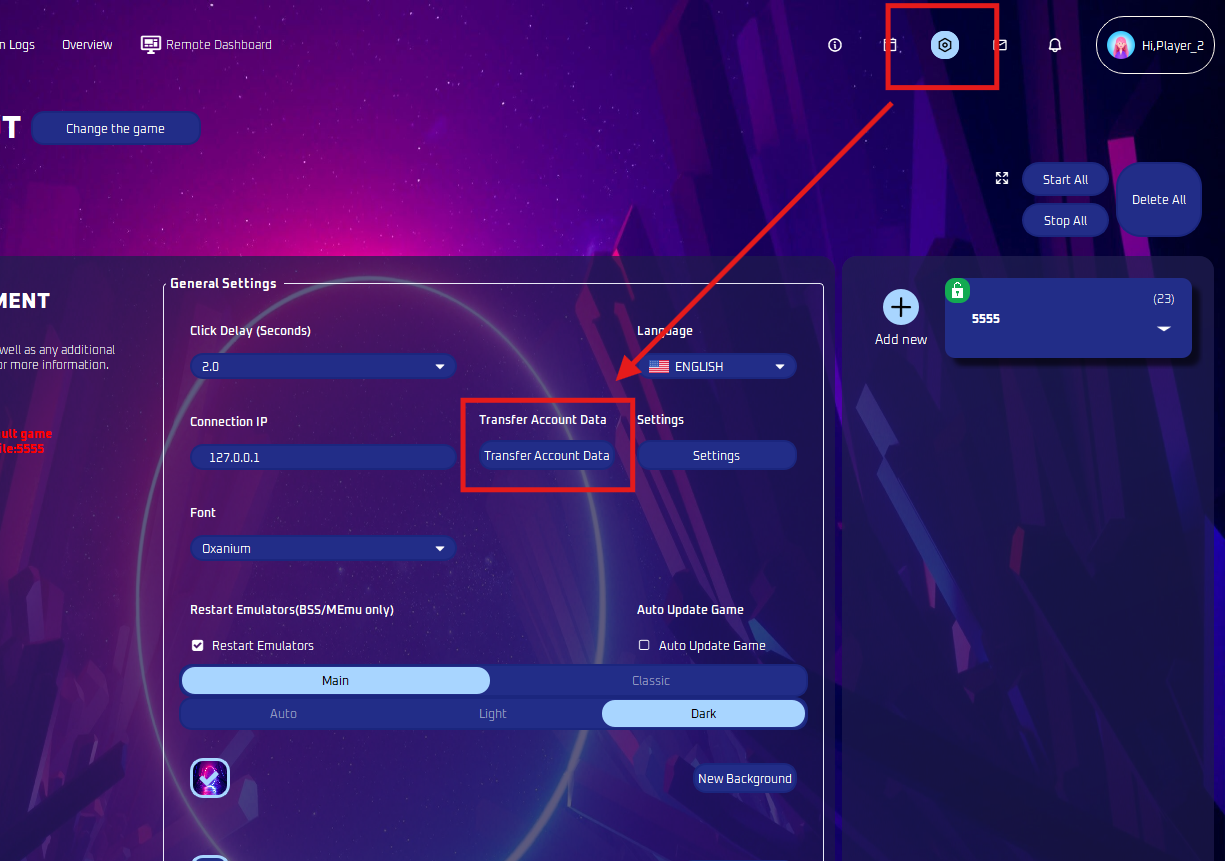
- Open Transfer Account Data
- Click the Admin tab on the left, then select Transfer Account Data.
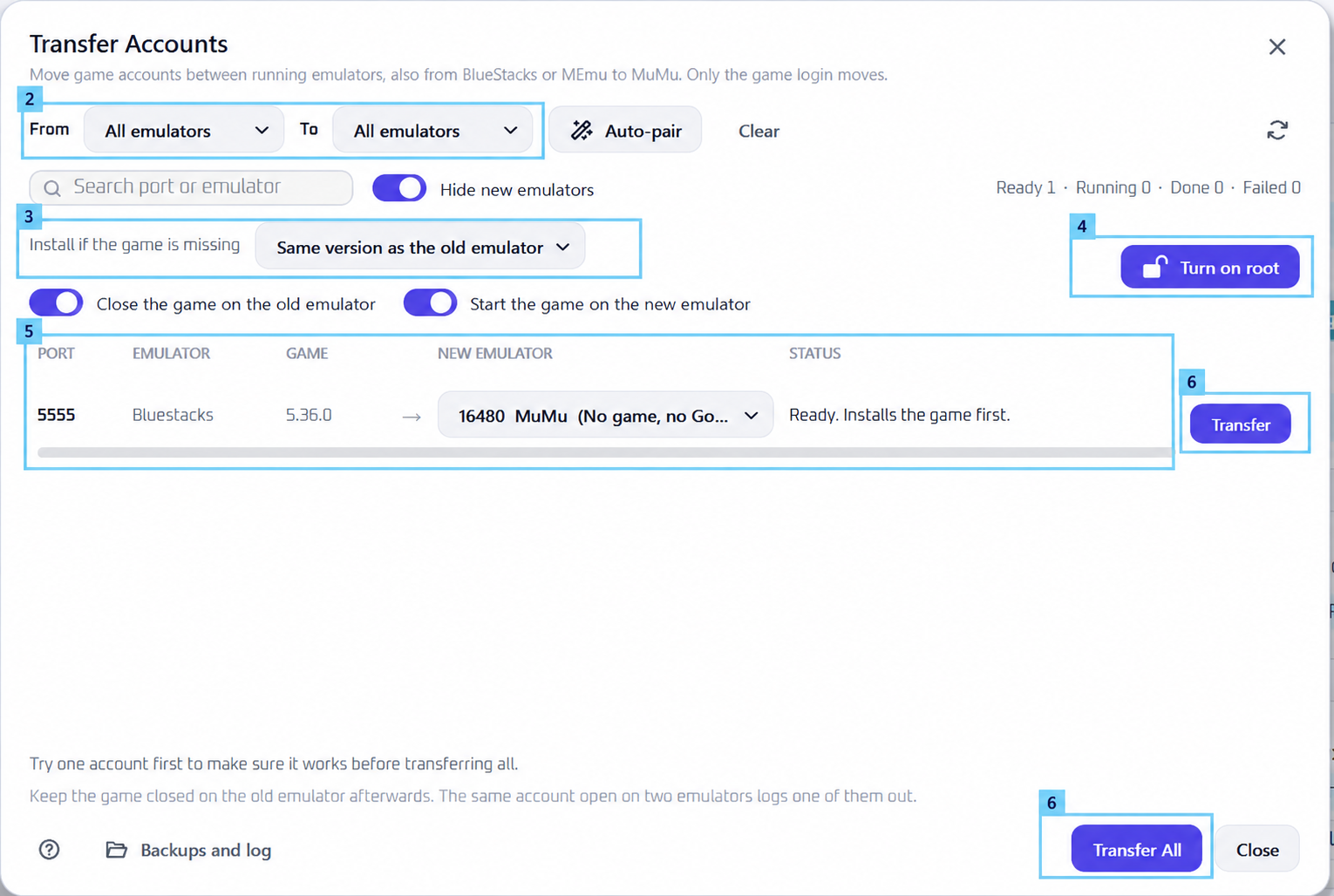
- Click the Admin tab on the left, then select Transfer Account Data.
- Select Emulators
- Use From to filter the source emulator and To to filter the target emulator.
- You can also leave both on All emulators.
- Choose the Game Installation Option
- Under Install if the game is missing, select Same version as the old emulator.
- If the target has no game installed, ESB will install the matching version first.
- Turn On Root — BlueStacks Only
- If prompted, click Turn on root. This allows ESB to access the account data needed for the transfer.
- The button disappears once root is enabled, so skip this step if already rooted.
- Pair the Source and Target
- Find the instance containing your account on the left.
- Under New Emulator, select the instance you want to transfer to.
- Double-check that the source → target pairing is correct.
- Example: BlueStacks (port 5555) → MuMu (port 16480).
- Start the Transfer
- Click Transfer beside the pair, or Transfer All for all configured pairs.
- We recommend testing one account first before transferring all.
- Wait until the status confirms the transfer is complete.
Note
- Create the target instance in your emulator’s Multi-Instance Manager first. Both source and target instances must exist and be running.
- Instances may open or close during the transfer. This is normal.
- Enable Close the game on the old emulator and Start the game on the new emulator if you want ESB to handle these automatically.
- Only the game login moves—not the entire emulator.
- Keep the game closed on the old instance afterward. Opening the same account on both instances will log one out.
- BlueStacks must support root access. If root cannot be enabled, install the game on the new instance and log in manually.
- Previously tested working versions: BlueStacks 5.22.102 and below.