







Getting Started
How to Pay
How to pay for ESB-TKR: choose a payment method, renew or upgrade instances, set up a subscription and manage it.
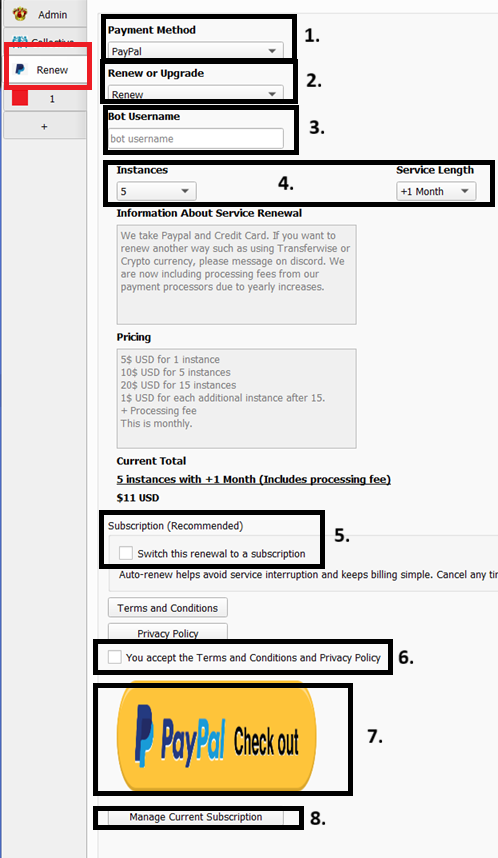
- Payment Method
- Pick either Paypal or Credit Card or Google Play payment.
- Renew or Upgrade:
- For upgrading your total instance count, you must have a service date that is greater than or equal to 15 days. Anything less than 15 will need to renew.
- Renewing will take into account how many total months you currently have and the difference will be calculated
- Bot username:
- This is the bot username provided to you to log in to the bot.
- Service Renewal or Upgrade Options:
- Select the amount of instances and the duration in months that you would like to purchase.
- Subscription (Recommended)
- Optional: Enable this to convert your plan renewal into a subscription.
- This will automatically renew your service each billing cycle, helping prevent service interruption.
- Terms and Conditions
- Accept the terms and conditions
- Paying:
- To finalize your payment, click the check out button.
- Manage Current Subscription
- Open this window to view and manage your active subscription.
You can:
- Refresh – Reload your current subscription details.
- Modify Plan – Change the number of instances in your subscription (charges are pro-rated).
- Cancel Subscription – Stop automatic renewals. Your service will remain active until the current billing period ends.
The panel also shows your status, plan ID, instances, payment method, and next renewal date.
Important
Subscription Notice:
Renewals are still allowed and will add months to the current subscription.
To upgrade subscription instances, use Modify Plan, not the regular upgrade option.
Any modifications to the subscription will be charged pro-rated based on the remaining billing period.
Note
The bot payment interface will stay on top of your screen. Simply bring your browser to the side of it to make room to pay. Additionally, the bot will present a message letting you know payment was successful!
And yes, after payment it will redirect to https://checkout.stripe.com/ and https://www.paypal.com/ - I don’t have a website to redirect at the time but will soon.
Thank you for all the support! I hope to have made your Evony life much easier, and any payments go towards helping the development of the tool.