







Automation Modes
Proxy Guide
Set up Webshare proxies for a profile: open the proxy settings, add your Webshare API key and pick a proxy mode.
On this page

How to Use
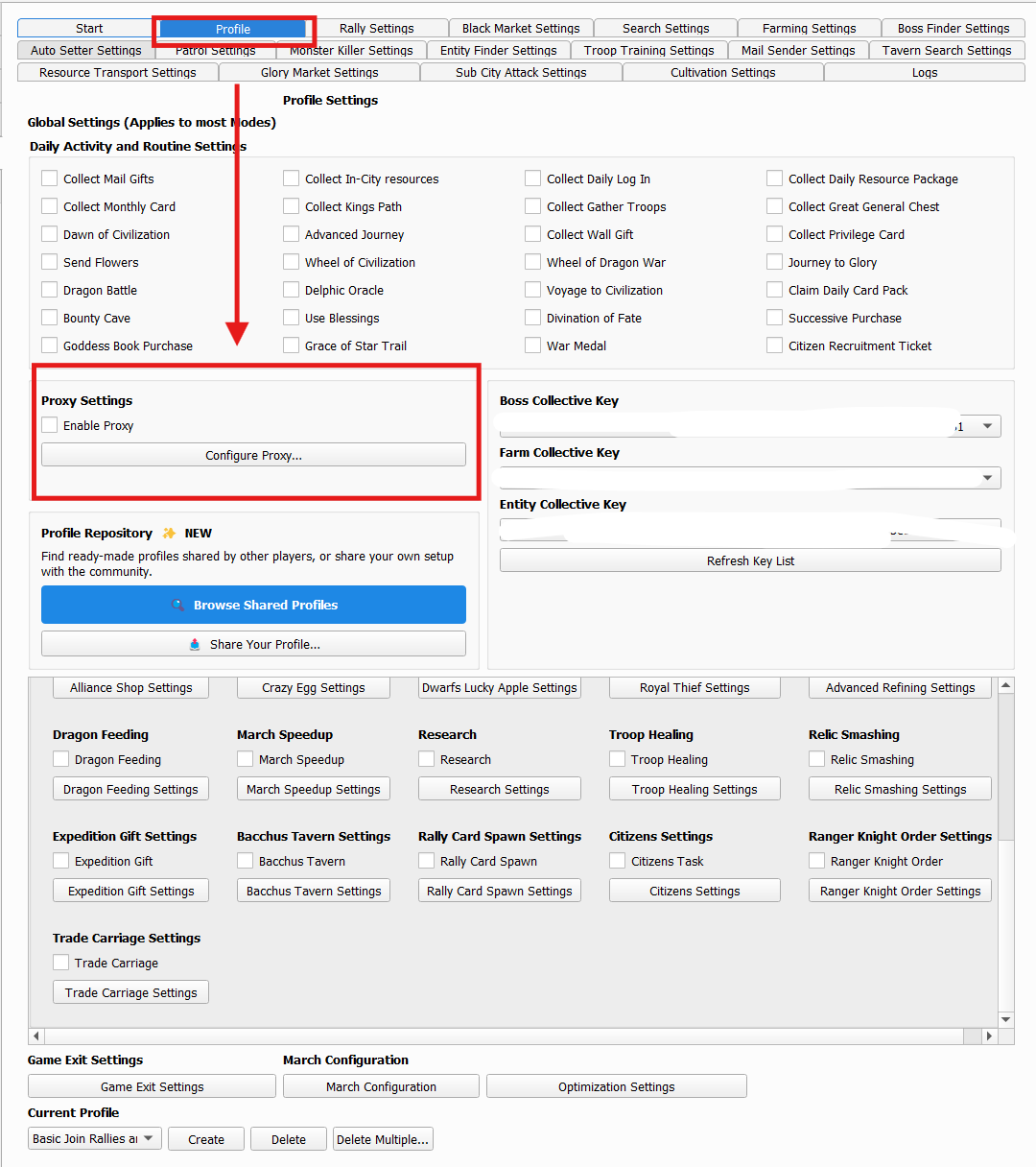
To Open Proxy Settings
- Go to the profile you want to edit.
- Click Edit Profile.
- Scroll down to Other Settings.
- Enable Enable Proxy.
- Click Configure Proxy...
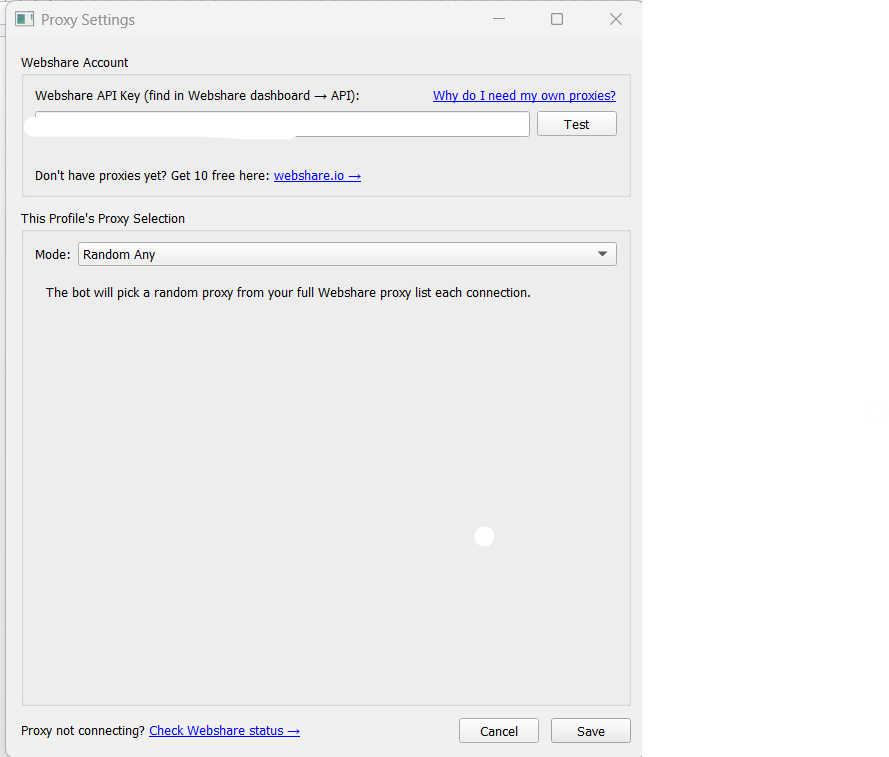
Setting Up Webshare
Step 1: Get Your Webshare API Key and get 10 free proxies.
- Open Webshare Dashboard
- Sign up or Log into your account.
- Find your API Key in the dashboard.
- Copy the API key.
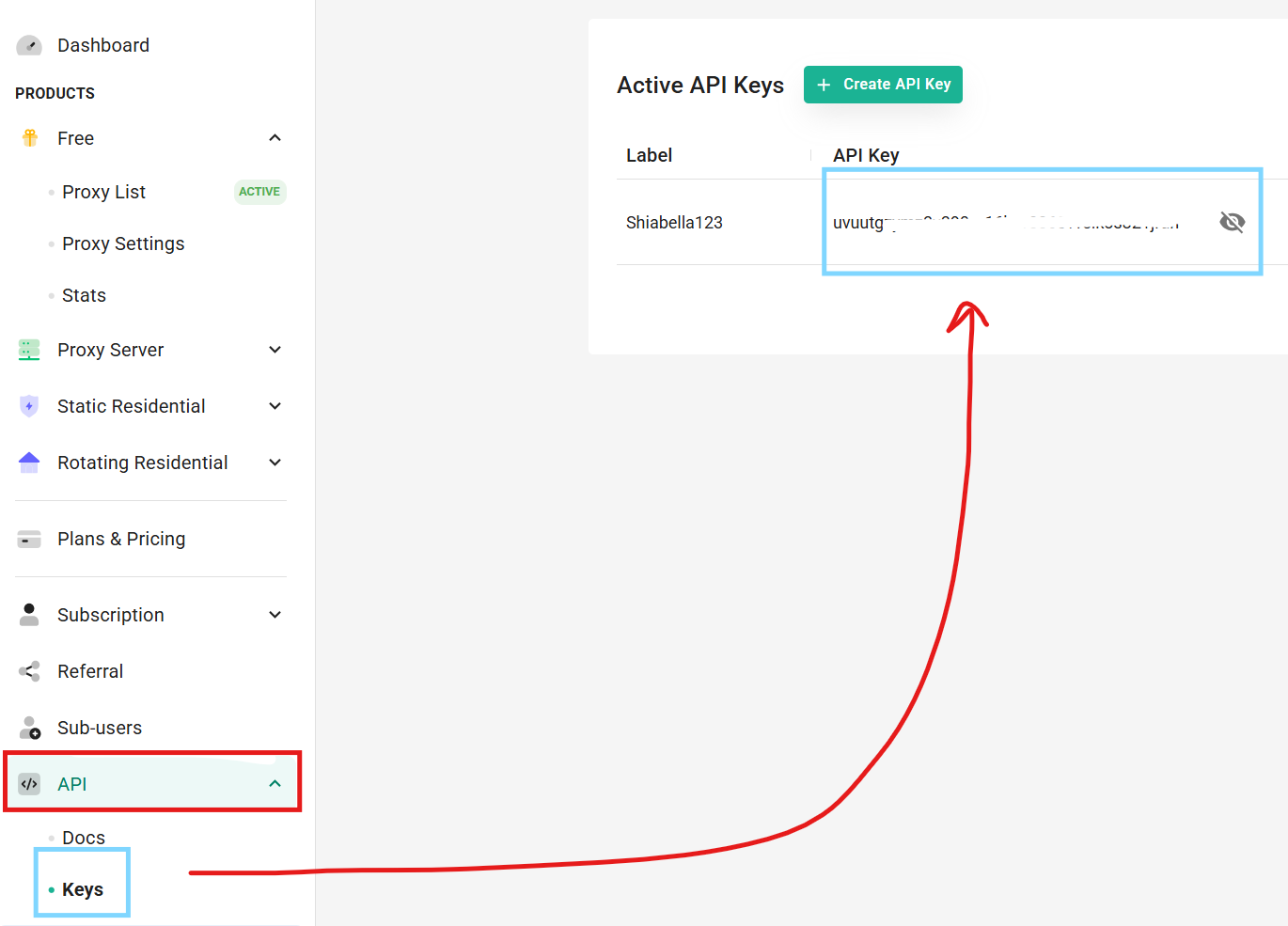
Step 2: Add API Key
Paste the API key into: Webshare API Key

Click Test. If successful, the bot will show ‘connected’ using the email linked to your Webshare account.
Step 3: Proxy Modes
Pick the proxy mode you want depending on how you want proxies assigned to profiles.
Proxy Modes:
Random Any
This mode randomly selects any available proxy from your Webshare account.
Random by Country
This mode randomly selects a proxy only from the selected country.
Specific Proxy
This mode allows you to manually assign a single exact proxy to the profile.
Note
1 Webshare account gives 10 free proxies.
Each proxy can be used for as many instances/profiles as you want, though spreading profiles across multiple proxies is generally recommended for better stability and separation.