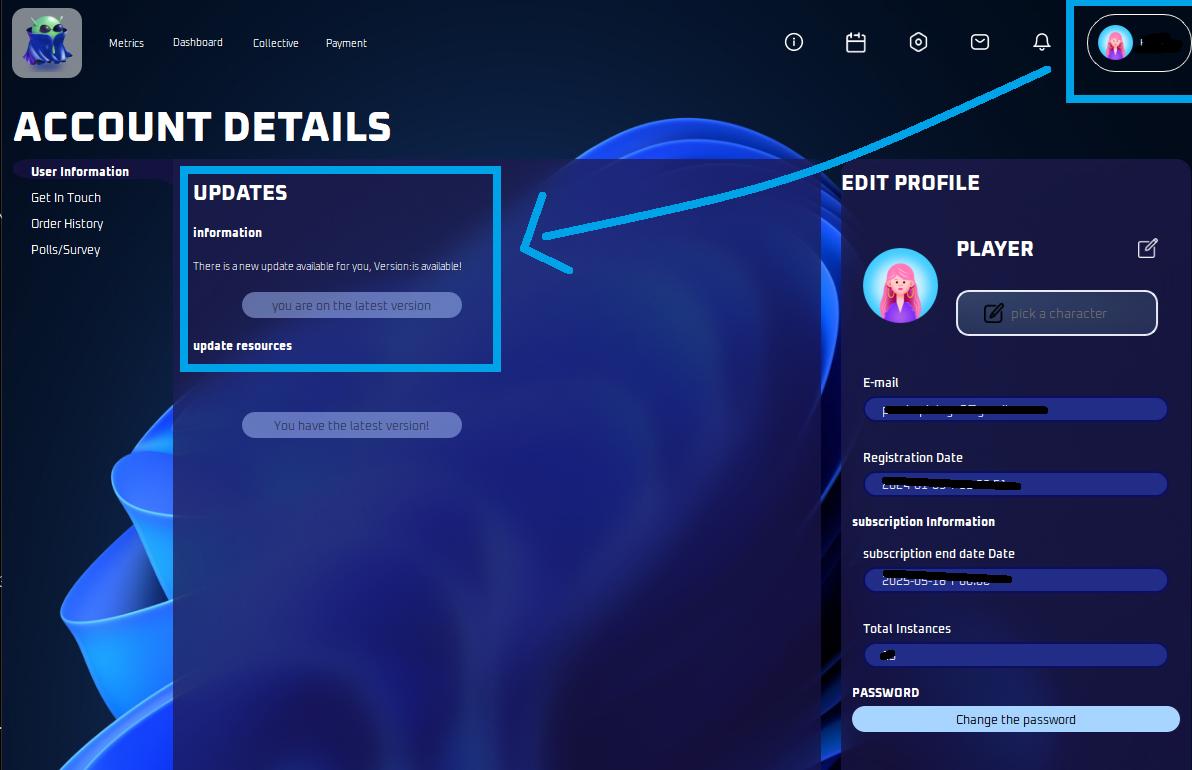







Getting Started
How to Update
Step-by-step instructions for downloading and installing an ESB update, and what to do if the update fails.
Hướng dẫn này chưa được dịch sang Tiếng Việt, nên được hiển thị bằng tiếng Anh.

Here are the step-by-step instructions on how to update:
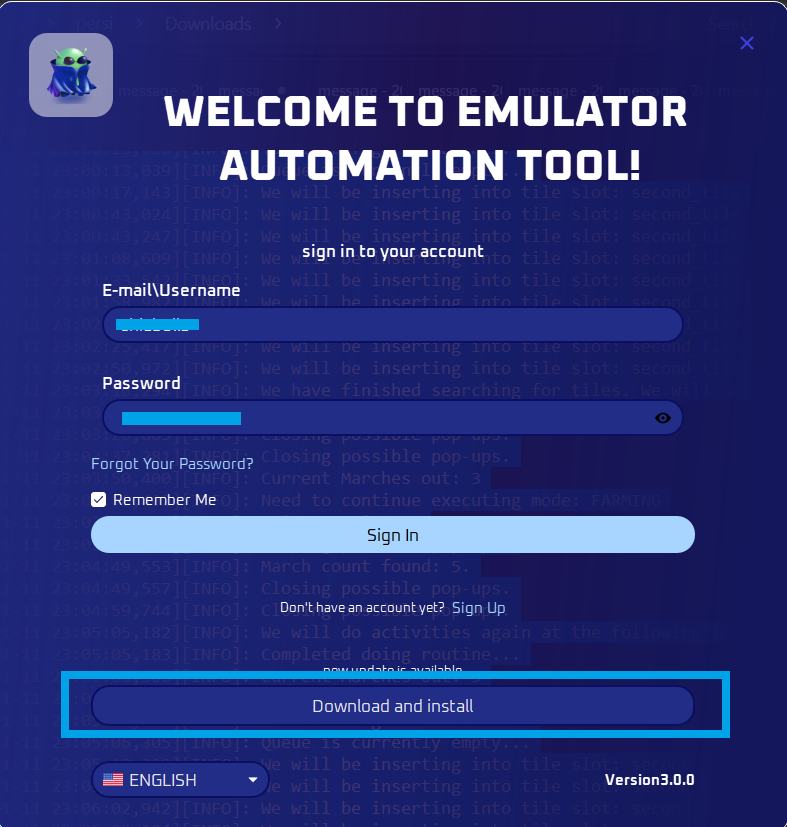
Click the Download and Install button.
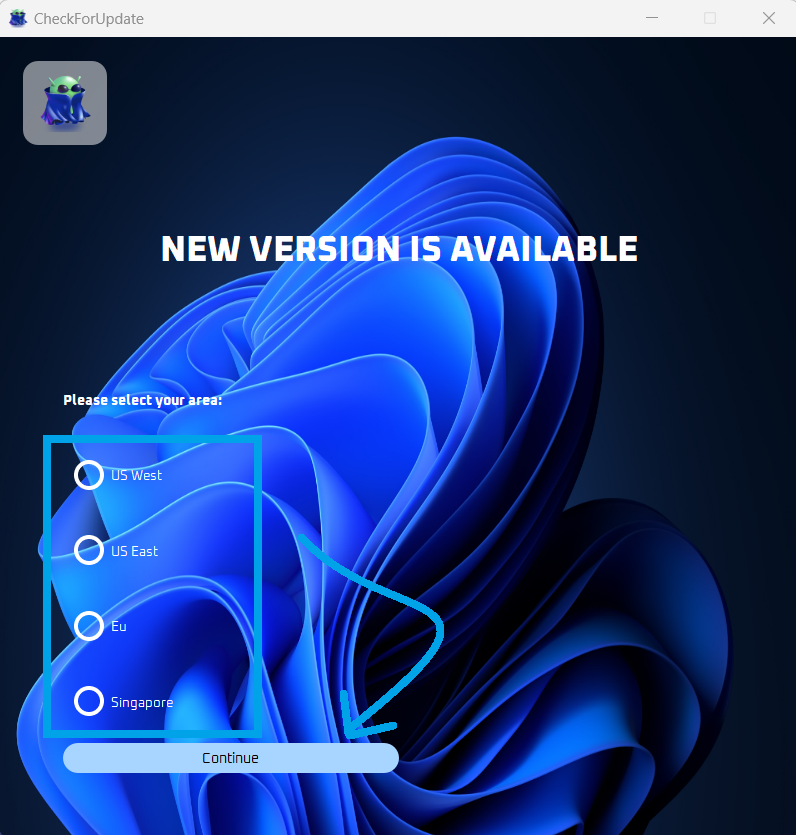
Then pick the location near you and click continue.
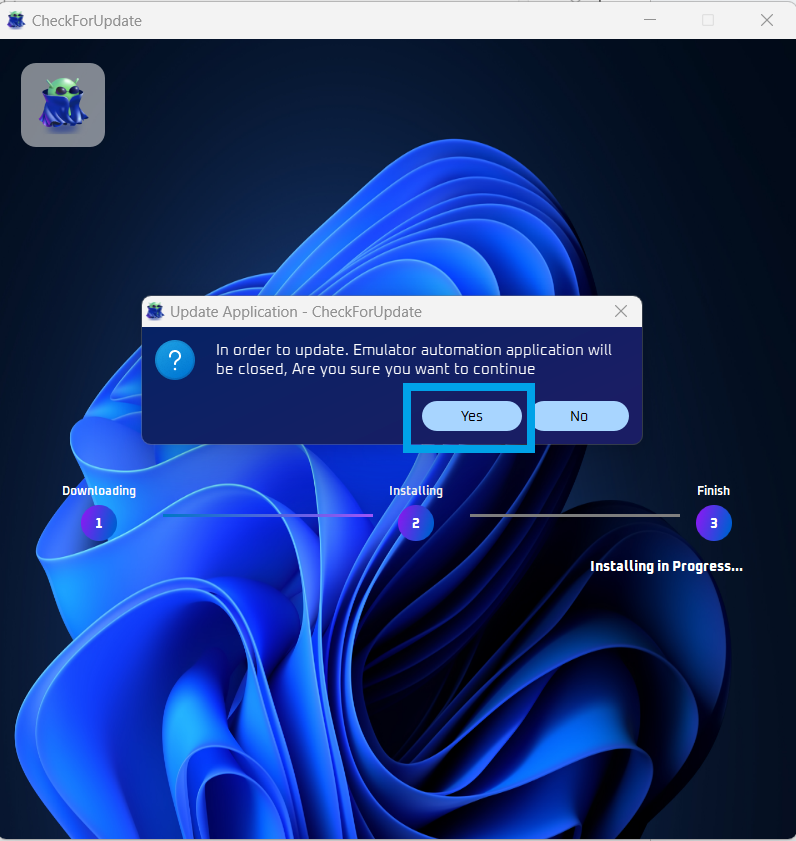
Click Yes.
If a pop up asks if you want to allow the app to do changes to your PC, click yes.
Now wait while the update is underway.
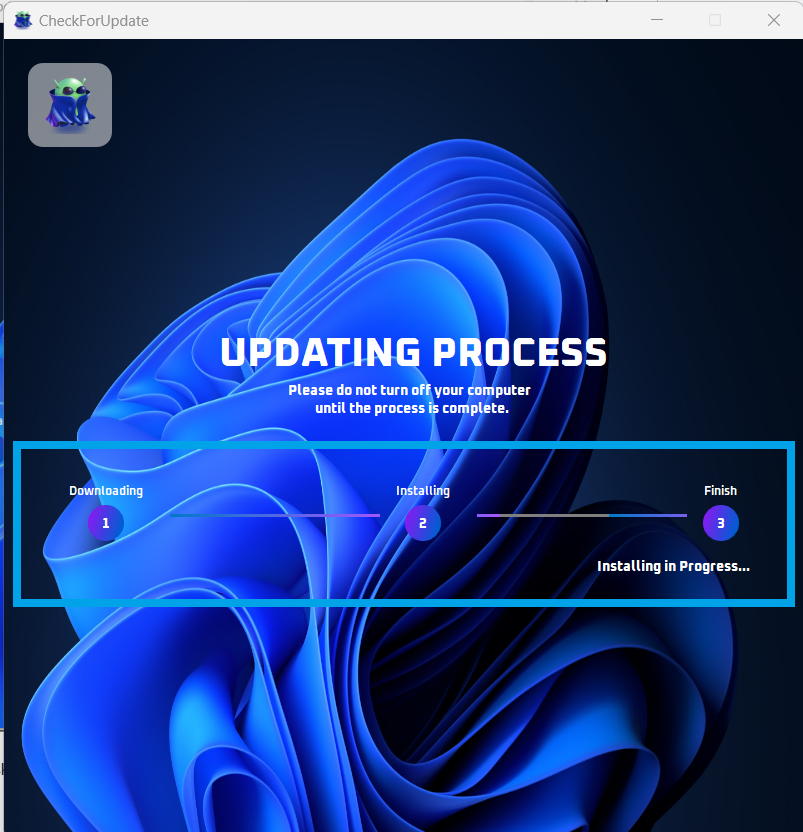
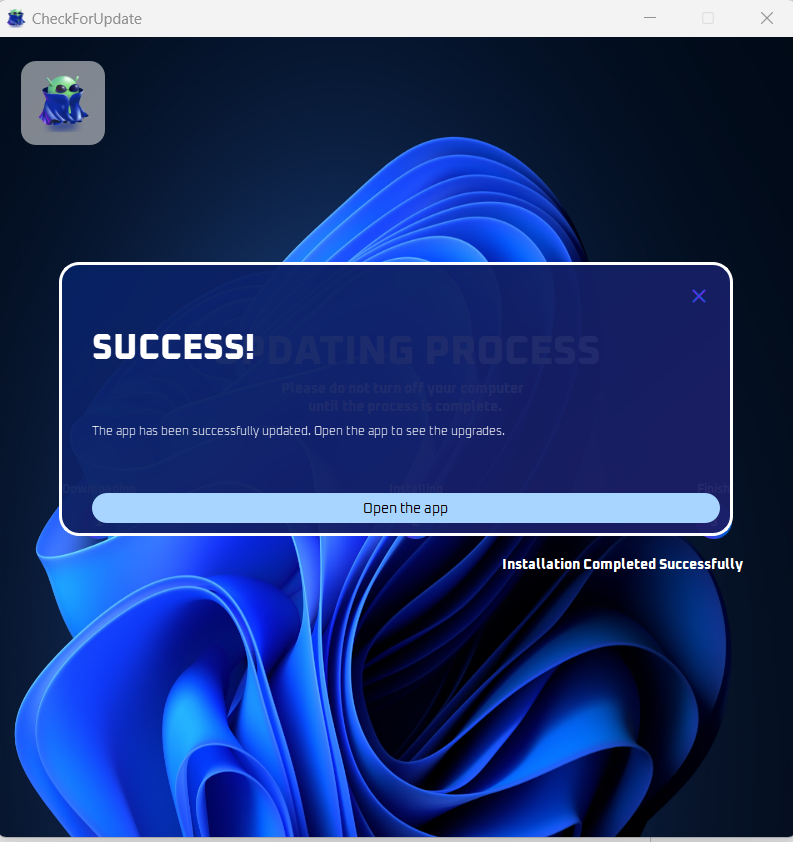
Your update is now complete! After clicking open the app, you can now proceed to use it as usual.
Note
If the update is unsuccessful, you can uninstall it by going to the Control Panel, then reinstall it from this website: ESB Download.
You can also check for any available updates by visiting: