





Profile Guides
Tab Profile Management
Every setting in the Tab Profile Management panel, plus how saving, loading, starting and stopping all tabs works.
Bu rehber henüz Türkçe diline çevrilmedi, bu yüzden İngilizce gösteriliyor.
Bu sayfada

Tab Profile Management Settings
Check the following photo below with numbering and a description by each number below.
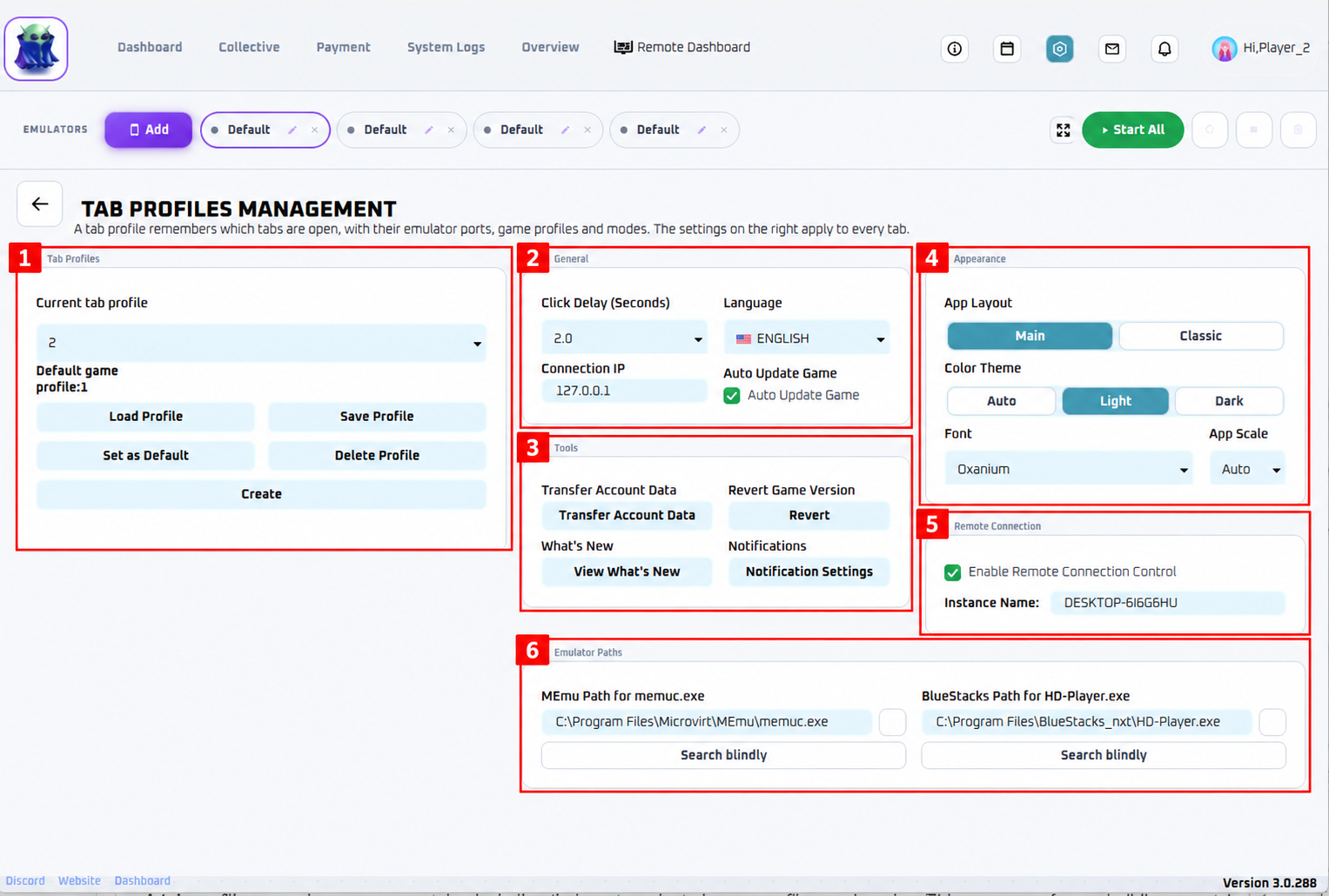
Click the Settings cog icon at the top of the app to open Tab Profiles Management. The numbers in the photo correspond to the descriptions below.
1. Tab Profiles
A tab profile remembers which tabs are open, including their emulator ports, selected game profiles, and modes. This is different from the profile under an individual tab’s Profile section. Think of it as a saved group of tabs, with each tab using its own selected game profile.
- Current tab profile: Select the saved tab profile you want to load or manage.
- Load Profile: Replaces your currently open tabs with the setup saved in the selected tab profile.
- Save Profile: Saves your current tab setup to the selected profile. Click this after making changes you want to keep.
- Set as Default: Sets the selected tab profile to load when the app starts.
- Delete Profile: Deletes the selected tab profile so that setup can no longer be loaded.
- Create: Creates a separate tab profile for another setup.
Making use of Tab Profiles
Profiles for the Admin Tab are a convenient way of quickly loading and starting up your bot. For example, when you restart your computer, you won’t need to re-enter your port numbers and profiles. Multiple Profiles can be used for multiple set-ups. For example, Some days you may run 5 instances, the other 7, or you may decide to split up the bot between multiple windows with different set-ups. Here is an image of a set up for some clarification: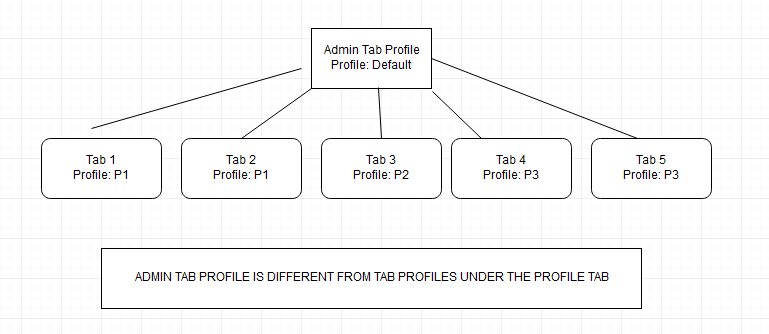
Saving Your Tab Setup
- Open all the tabs you want to include.
- Assign each tab its correct emulator port, game profile, and mode.
- Click the Settings cog icon.
- Under Tab Profiles (1), select an existing profile or click Create.
- Click Save Profile.
- Click Set as Default if you want this setup to load when the app starts.
After changing your tab setup, click Save Profile again to keep those changes.
Loading a Saved Setup
- Open Tab Profiles Management.
- Select a setup from Current tab profile.
- Click Load Profile to replace the current tabs with the saved setup.
- Click Start All in the top toolbar when you are ready to run them.
Save any changes you want to keep before loading another setup.
2. General
These settings apply to every tab.
- Click Delay (Seconds): Sets the delay between bot actions. The default is 2.0 seconds. Lower values make actions faster, but may be less reliable if your PC or emulator cannot keep up.
- Language: Changes the language of the bot interface, not the game. Your game still needs to be in English.
- Connection IP: Specifies the computer running your emulators. Keep 127.0.0.1 when the bot and emulators run on the same PC.
- Auto Update Game: Allows the bot to attempt to update the game automatically when an update becomes available.
3. Tools
This section contains account-transfer tools, game-version controls, update information, and notification settings.
- Transfer Account Data: Opens the tool for moving game login data between supported emulators. Follow the instructions in the tool.
- Revert: Opens the tool for installing an older game version while keeping the emulator’s game data. More info here: REVERT Game Version · New Interface · EAT Docs
- View What’s New: Displays information about recent changes and updates to the bot.
- Notification Settings: Opens the setup for push notifications. Follow the instructions in the pop-up to configure your alerts.
4. Appearance
Use this section to customize how the bot looks on your screen.
- App Layout: Choose Main for the new interface or Classic for the original interface.
- Color Theme: Choose Auto, Light, or Dark.
- Font: Select the font used in the bot interface.
- App Scale: Adjust the size of the bot interface to suit your display. This does not change your emulator’s resolution.
5. Remote Connection
Use this section to enable remote connection control and identify your application instance on the dashboard.
- Enable Remote Connection Control: Enables remote access through the remote dashboard.
- Instance Name: Sets the name shown for this application instance. Use a recognizable name so you can easily identify it when using multiple PCs.
6. Emulator Paths
These fields tell the bot where your emulator programs are installed. Correct paths help the bot locate supported emulators when launching or restarting them.
- MEmu Path for memuc.exe: Select the
memuc.exefile inside your MEmu installation folder. - BlueStacks Path for HD-Player.exe: Select the
HD-Player.exefile inside your BlueStacks installation folder. - Browse button: Click the small button beside the path field to locate the correct file.
Note: Your installation folders may differ from those shown in the photo. Select the files from your own emulator installation.