






Getting Started
Main Menu Guide
A numbered tour of every section of the ESB main menu, from devices and modes to the kick timer, scheduled modes and profiles.
이 가이드는 아직 한국어로 번역되지 않아 영어로 표시돼요.

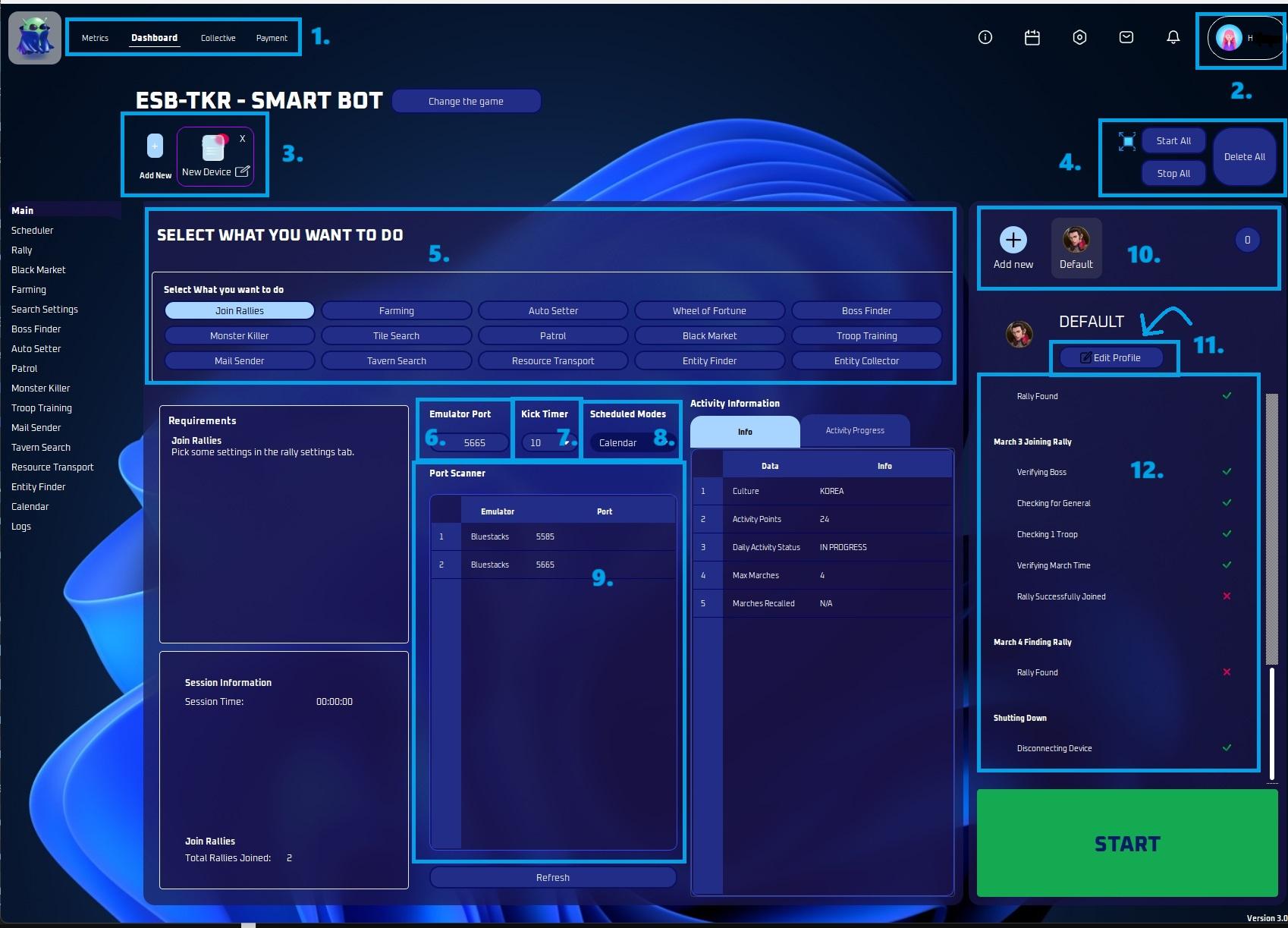
This section displays your metrics, dashboard, payment, and collective information.
Account Details
- Here is where you can access your personal information and view specifics of your subscription.
Devices
- This is the area where you can add devices (instances).
Device Actions
- You can opt to start all, stop all or even delete all instances conveniently from this section.
- You also have an option to sort devices here.
Modes
- Select the mode/s you wish to activate.
Emulator Port
- Enter the emulator port number in this field.
Kick Timer
- Sometimes you want to check in to see how your account is doing, or talk to your alliance mates. This timer will pause the bot for X minutes, and allow you to play during this time. It will then boot you off and the bot will resume. Very useful, mainly on main accounts to check in!
Scheduled Modes
- Default - the original ESB way. Leave it if you don't want to mess with setting up times.
- Hybrid - Runs the main jobs from the Main page, but will run activities from the times in the Calendar.
- Calendar - Runs main jobs and activities from the Calendar.
- Activities - Runs only activities selected on profile tab.
- Hybrid Reverse - Runs only the main tasks in Calendar, but runs the activities as normal
Port Scanner
- Here it will show all actively open port numbers.
Profiles
- This area provides an overview of all active profiles.
- You can also add profiles here.
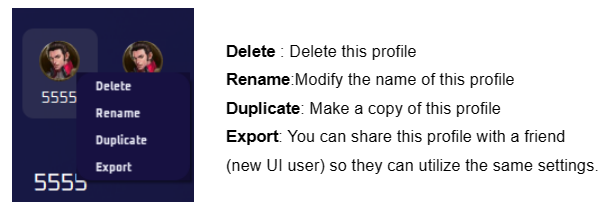
- By right clicking on an active profile you can either delete, rename, duplicate or export it.
Edit Profile
- This section allows you to customize your profile to align with your preferences, including the choice of activities.
Details
- This is the latest addition- now you can view the planned actions.