






Getting Started
How to run Multiple Instances
If you have purchased multiple instances, you can open more bot tabs and run several emulator instances at once. Great for farming and growing!
이 가이드는 아직 한국어로 번역되지 않아 영어로 표시돼요.
이 페이지에서
How to Use
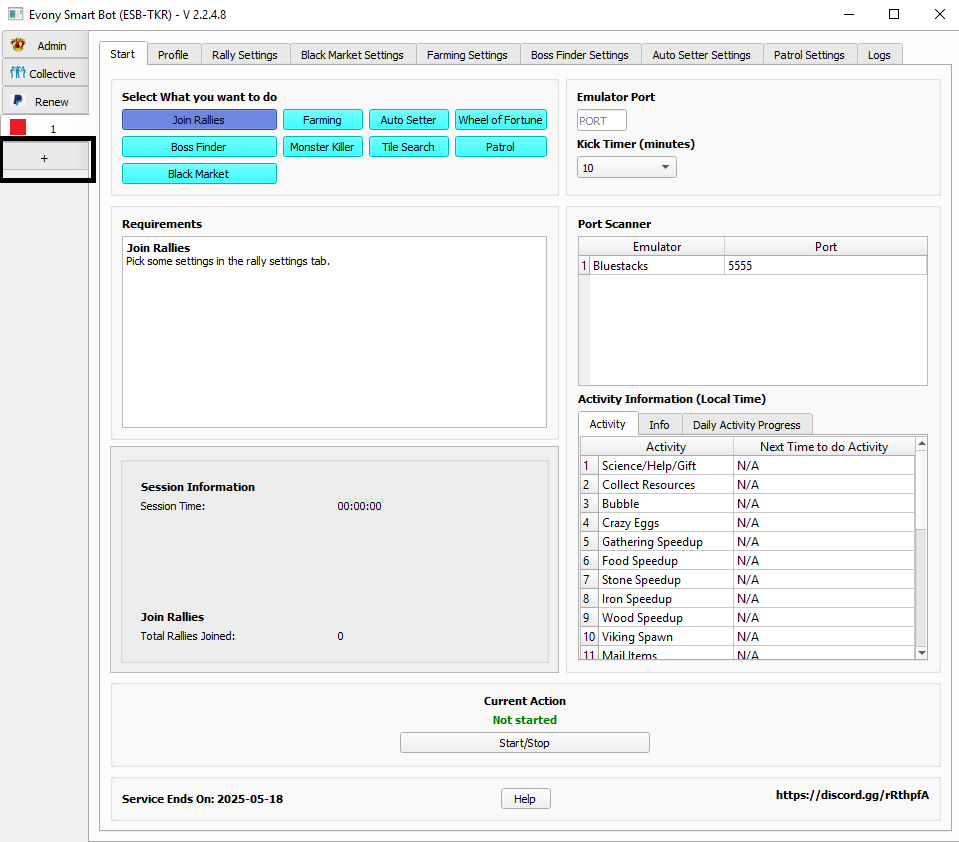
If you have purchased multiple instances, you will be eligible to open up more tabs. This allows you to run multiple accounts at once! Great for farming and growing!
Click the ‘+’ sign to add a new tab. Note that if you try to open more tabs than you are eligible for, your request will be denied.
Create multiple instances of your emulator and manage them easily using the Multi-instance Manager.
Open your emulator’s Multi-instance Manager.
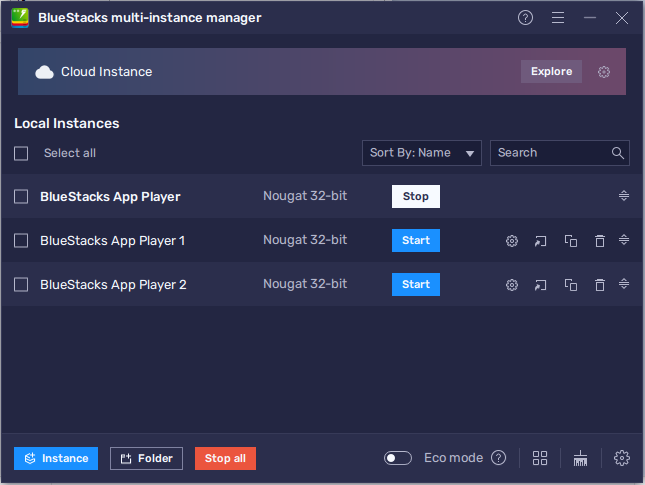
Click on the "Instance" button on the Multi-instance Manager window.
Click create fresh instance. Please don’t clone an instance as this creates issues.
Now, log in to your account and switch accounts in game. Just like what you do in a game on your phone.
In the bot, enter the port number for a different instance. Each instance has its own number. If you forgot, follow the appropriate guide for the emulator you chose:
Hit start. Everything runs independently. Profiles, and bot tabs. You can manage everything here and run it in the background.
Note
Additional information available here:
Memu: Set Up Multiple Instances (Multi-MEmu) - MEmu Blog (memuplay.com)
Bluestacks: How to create and manage instances using the Multi-instance Manager on BlueStacks 5 – BlueStacks Support
Reminder: Always make a fresh instance, not clone.