






The Collective
Collective Guide for Bosses
Share boss locations between accounts with a boss collective key, and manage the queue, sort order and boss prioritization.
このガイドはまだ日本語に翻訳されていないため、英語で表示しています。
- How to Use
- For a thorough explanation, we encourage you to watch the provided instructional video here: https://www.youtube.com/watch?v=J3IOhJ13pgo.
Follow the steps below to understand and take advantage of the collective.
- Go to the collective tab.
- Enter in a key that someone gave to you OR generate your own.
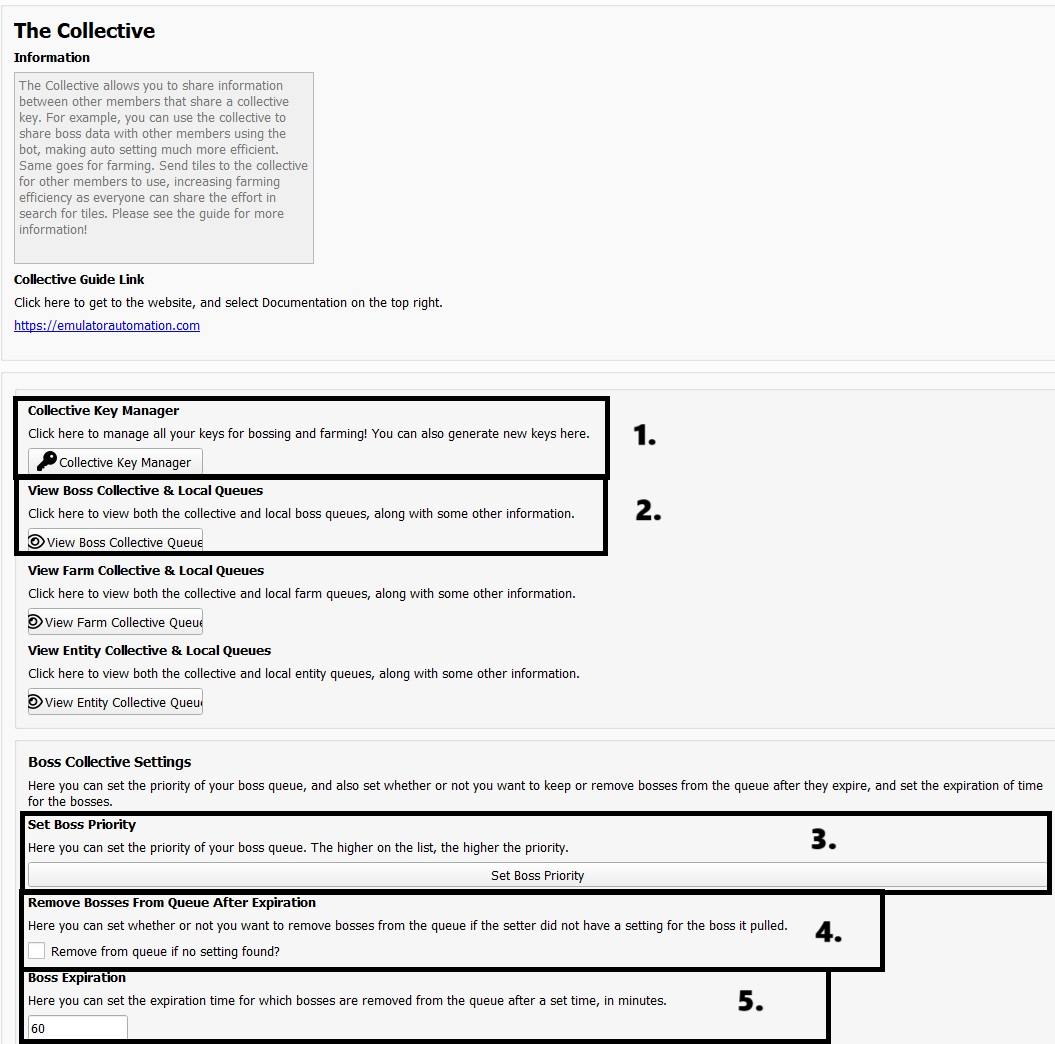
- Boss Collective Key Manager
where you can manage multiple keys. Useful for users who want to use collective on multiple servers which require multiple keys.
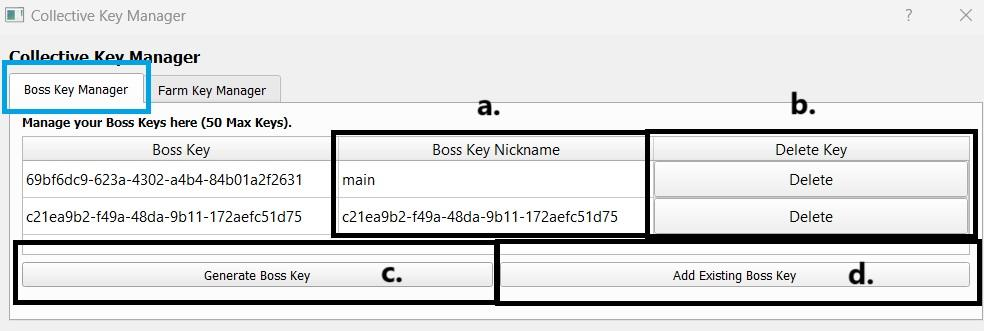
- Boss Key Nickname
- Add nicknames to your keys to easily identify the purpose of each key.
- Delete Key
- Delete any key at any time.
- Generate Boss Key
- Generate a new boss key here.
- Add Existing Boss Key
- Enter another user’s collective key to use the same shared pool of bosses.
- Users with the same key can send bosses to the same collective and retrieve them using the auto setter. This allows friends or alliance members to help each other spot bosses.
[!WARNING] Make sure you have picked the right collective key for each tab in the profile tab.
2. Boss Collective Queue
- Boss Collective Queue
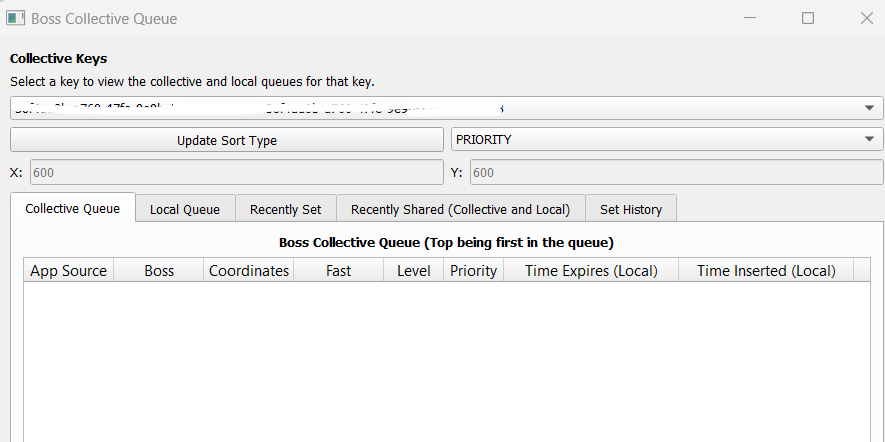
- Select a specific key then you can view what bosses are in them.
- Update Sort Type
- Sort by:
- Priority: Attacks bosses based on your prioritization list.
- Distance: Targets the nearest boss first.
- Priority then Distance: Sorts bosses by priority first, then by distance.
- Reference Point:
- For distance, you can enter reference points for X and Y, which is typically your keep coordinates.
- Boss Collective Queue
- Shows a list of bosses found.
- Local Boss Queue
- These are bosses stored on your local esb application and are the ones up to be set next.
- Bosses Recently Set
- Auto setter now takes into account the rally time and time to march to that boss. That time is added to the recently set list and those coordinates cannot be shared until that time expires.
- Shows all the bosses recently set by all that share the same boss collective key.
- Recently Shared
- This shows the bosses the bot recently found and shared to the collective.
- Bosses Set History
- Shows the history of bosses you have set.
- This will refresh every time the bot restarts.
- Source of Bosses Found
- App Source - Map, Alliance Chat, or Whisper are some of the values you would see so you can identify where it came from.
- User Source - You can identify on bot username who sent the data.
- Fast
- True: Boss was found using Fast Search.
- False: Boss was found using Normal Search.
3. Boss Prioritization
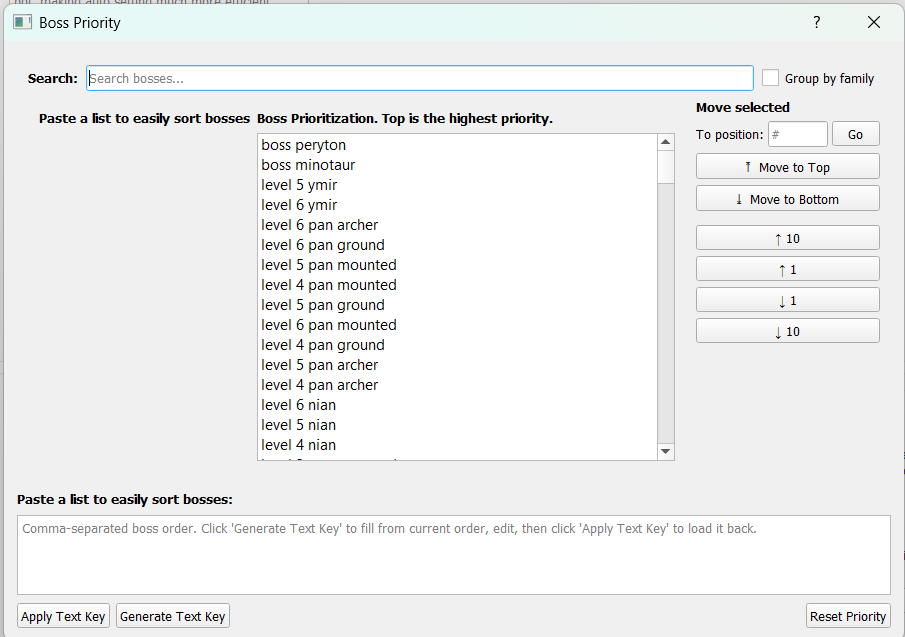 Set the order in which bosses are prioritized. Bosses at the top have the highest priority.
- Find a boss using Search, then select it.
- Use Move to Top, Move to Bottom, or the Up/Down buttons to change its priority. To move it to a specific position, enter a number under “To position” and click “Go.”
- Click “Generate Text Key” to copy your boss priority order and share it with friends or alliance members who also use the bot. To use their priority order, paste their text key here and click “Apply Text Key.”
- Click “Reset Priority” to restore the default order.
For iScout: After making changes, clear the collective queue and click “Update priority” in the iScout Keys window.
4. Remove Bosses from Queue after Expiration
- Here you can set whether or not to remove bosses from the queue if the setter did not have a setting for the boss it pulled.
5. Boss Expiration (minutes)
- You can set the time a boss will remain in your queue.
Note
Make sure to enable “send to collective” in auto-setter and boss-finder!
Remember, the collective is a team effort! The point is to have other people helping contribute - or if you use the bot on multiple machines, so that they can communicate with each other!